Social Media Graphics Automation: A Practical Guide
Learn how social media graphics automation works, which tools fit your workflow, and how Canvora generates up to 15–20 visuals from one input. Start free today.
On this page
Social media graphics automation is the practice of using AI or programmatic tools to convert raw content – a blog post, a URL, a PDF, a set of talking points – into finished, platform-ready visuals without manual design work. Instead of opening a design tool, hunting for a template, and spending 20 minutes resizing and retyping, an automated workflow takes the content you already have and produces carousels, quote cards, infographics, and social posts across multiple formats in a single pass. The core workflow has three stages: input (paste your content or connect a data source), generation (an AI design platform reads the content, applies brand settings, and produces a batch of visuals), and export (download as PNG, PDF, or PPTX, or pull assets via API into a broader content pipeline). Done well, one piece of source content can yield up to 15–20 platform-ready visuals across formats in about a minute – no designer required, no template browsing, no manual resizing.
TL;DR – Key Takeaways
- Social media graphics automation converts existing content (URLs, PDFs, docs, plain text) into finished visuals without manual design work – the content does the heavy lifting.
- Modern AI design platforms like Canvora generate up to 15–20 platform-ready visuals across 100+ formats from a single input, covering carousels, quote cards, infographics, ads, and more.
- Brand consistency at scale is handled automatically: logo, colors, and fonts apply across every visual in a generation run via brand kits.
- Multilingual output is built in – Canvora generates visual content in 150+ languages, which matters if your audience isn't English-first.
- Programmatic workflows are possible via API or through MCP integration inside Claude and ChatGPT, both available on any plan.
- The meaningful distinction isn't speed – it's eliminating the template-customization loop entirely. You paste content; you get visuals.
- Automation doesn't replace creative judgment. It removes the production bottleneck so that judgment can go toward strategy, not layout.
What Is Social Media Graphics Automation?
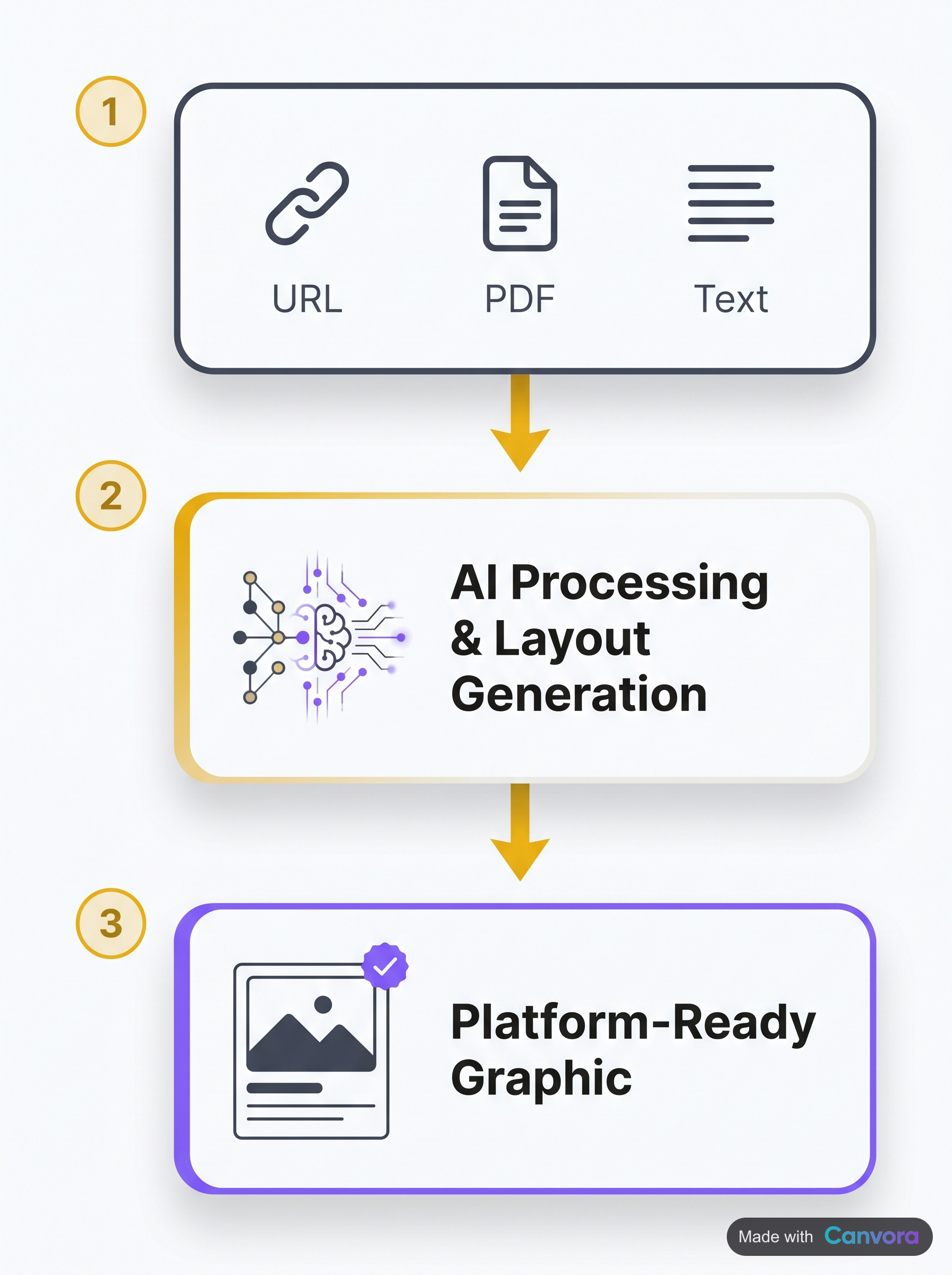 Automation transforms raw content into platform-ready graphics in seconds.
Social media graphics automation is the process of generating platform-ready visual assets from existing content – a URL, a document, a block of text – without manually placing elements on a canvas. Instead of opening a design tool, browsing templates, and customizing each one, an automated system reads the content, extracts the key ideas, and produces finished visuals sized and formatted for the platforms you specify. The distinction matters: template customization still requires a human to select, fill, resize, and export every asset. Automation shifts that burden to software. At the far end of the spectrum, a single blog post URL goes in and a set of quote cards, stat graphics, and platform-specific carousels comes out – no template browsing, no manual resizing, no copy-pasting headlines into text boxes.
Automation transforms raw content into platform-ready graphics in seconds.
Social media graphics automation is the process of generating platform-ready visual assets from existing content – a URL, a document, a block of text – without manually placing elements on a canvas. Instead of opening a design tool, browsing templates, and customizing each one, an automated system reads the content, extracts the key ideas, and produces finished visuals sized and formatted for the platforms you specify. The distinction matters: template customization still requires a human to select, fill, resize, and export every asset. Automation shifts that burden to software. At the far end of the spectrum, a single blog post URL goes in and a set of quote cards, stat graphics, and platform-specific carousels comes out – no template browsing, no manual resizing, no copy-pasting headlines into text boxes.
Template Customization vs. True Automation
Most designers and marketers are familiar with the template-customization model. You open Canva or Adobe Express, pick a layout that roughly fits, swap in your text and brand colors, and export. That workflow works well for one-off pieces. It breaks down when you need eight formats for three platforms every week.
True automation removes the template-selection step entirely. The system infers layout, hierarchy, and visual style from the content itself. Two main approaches exist:
- API-driven programmatic generation – developers send content via API calls and receive rendered images back. This suits teams building automated pipelines in Make, Zapier, or custom code.
- AI-first platforms – non-technical users paste content into a web interface (or an AI assistant) and receive a multi-format visual set without writing a line of code.
Both approaches can apply brand kits automatically, generate output across 100+ format variants, and produce copy in multiple languages – none of which template-based tools do at the same level of scale.
What Automation Does Not Replace
Automation handles production. It does not handle strategy. Content planning, creative direction, audience targeting, and brand voice decisions still require human judgment. A tool that generates 15 quote cards from a blog post is only as useful as the blog post itself. Automation compresses the gap between "we have the content" and "we have the visuals" – it does not close the gap between "we have no content strategy" and "we have a working social presence."
The Real Problem Automation Solves
The typical content team is not short on ideas. It is short on production capacity. A single long-form article could reasonably become a LinkedIn carousel, four Instagram quote cards, two Pinterest infographics, a Facebook post graphic, and a set of story-sized assets – easily a dozen distinct files across different dimensions and copy treatments. Doing that manually, even with a template tool, takes hours. Doing it with an automated pipeline takes roughly a minute. That gap – between what the content could become and what the team has time to actually produce – is exactly what social media graphics automation is designed to close.
Why Manual Graphic Creation Breaks Down at Scale
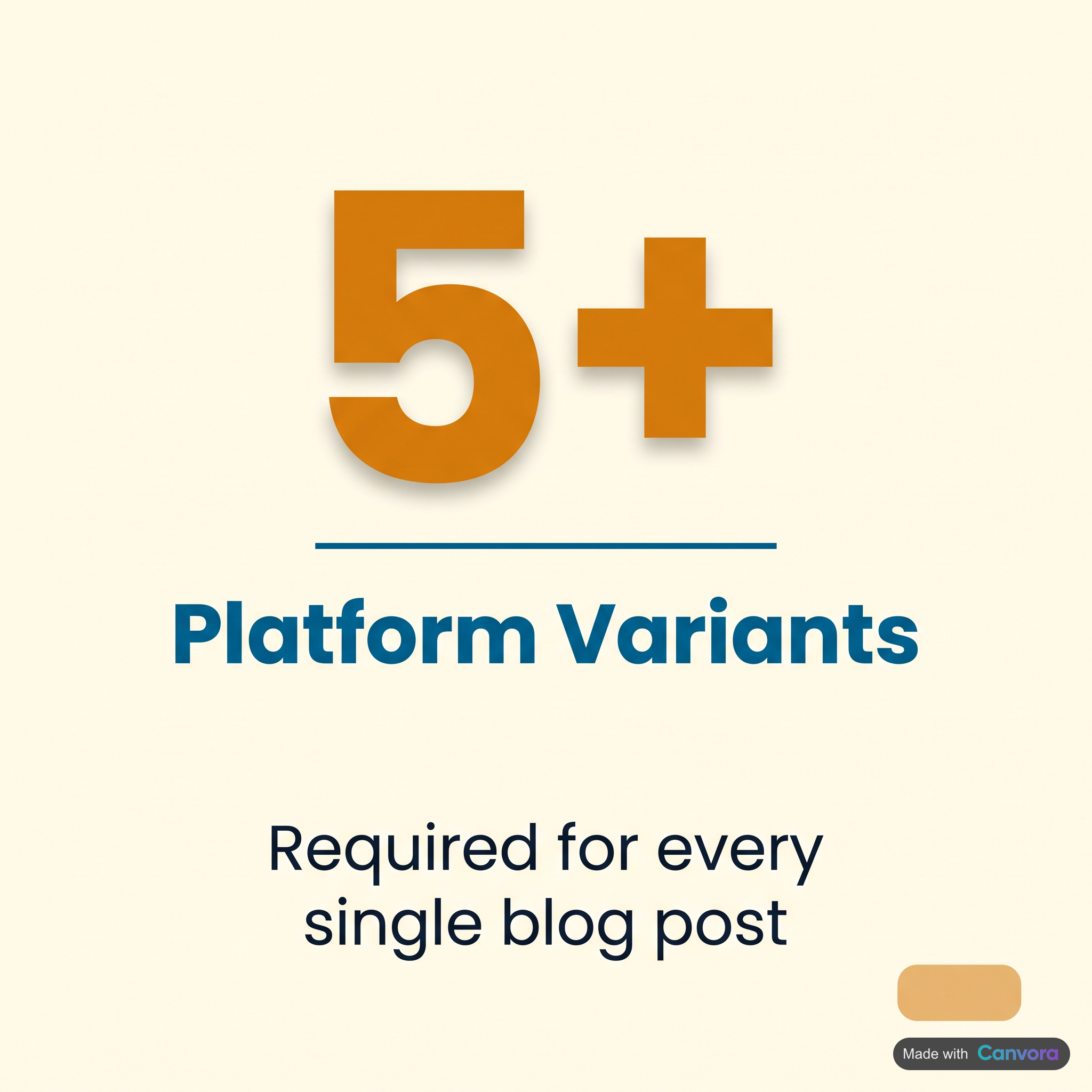 One piece of content. Five platform formats. Manual design doesn't scale.
Manual graphic creation has a format problem before it has a speed problem. A single blog post, repurposed properly, needs a LinkedIn document card, an Instagram carousel, a square Facebook post, a Pinterest pin, an email header, and probably a few quote cards on top of that. Each format has different dimensions, different safe zones, and different audience expectations. That's not one design job – it's six, and they all need to look like they came from the same brand.
One piece of content. Five platform formats. Manual design doesn't scale.
Manual graphic creation has a format problem before it has a speed problem. A single blog post, repurposed properly, needs a LinkedIn document card, an Instagram carousel, a square Facebook post, a Pinterest pin, an email header, and probably a few quote cards on top of that. Each format has different dimensions, different safe zones, and different audience expectations. That's not one design job – it's six, and they all need to look like they came from the same brand.
The Template-Browsing Tax
Open Canva or Adobe Express to build one of those assets and the clock starts running before you've placed a single word of your actual content. Browsing templates, previewing layouts, rejecting the wrong aesthetic, adapting a template that's close-but-not-quite – that's 20 minutes gone per asset, conservatively. Multiply by six formats, multiply by three posts a week, and the design queue becomes a bottleneck that no content calendar survives intact.
Consistency Erodes Across Posts
Manual workflows drift. One post uses the brand's primary blue; the next uses something close. A headline is 32pt here, 28pt there. The logo sits in the bottom-right on Monday and the top-left on Friday. None of it is intentional – it's just what happens when a human makes the same decision 40 times a month without a system enforcing the rules.
The Volume Ceiling
Content marketers publishing 15–20 visuals per week hit a hard ceiling without automation. And if the campaign runs in Spanish, German, and Portuguese as well as English, that ceiling arrives three times faster. Translating a visual campaign manually doesn't mean changing the text – it means rebuilding every asset from scratch in each language, because the layouts rarely survive a language swap without adjustment.
The Two Main Automation Approaches (and When to Use Each)
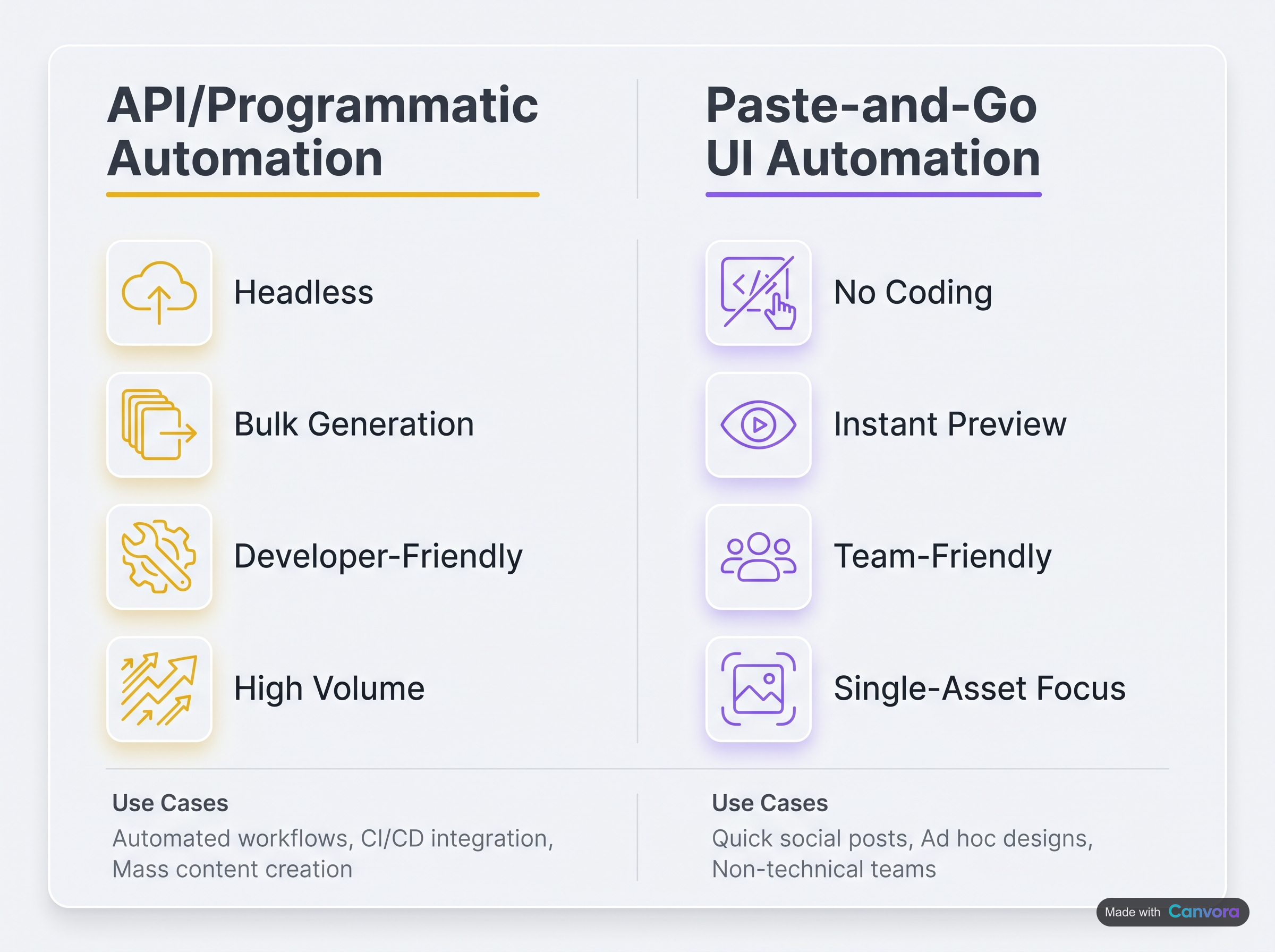 Choose API for scale; choose UI for speed and simplicity.
There are two meaningful approaches to automating social media graphics, and the right one depends on how your content pipeline is structured. API/programmatic automation connects a data source – a Google Sheets feed, a CMS, a webhook – directly to a graphics API, which renders visuals without human input. This suits high-volume, repeatable formats: product cards that pull from a catalog, event announcements that fire when a calendar entry is created, ad variants generated from a spreadsheet of copy. AI-platform automation works differently: you paste a URL, upload a PDF, or describe an idea, and the platform generates a full set of visuals across multiple formats from that single input. No template browsing, no manual layout. This approach fits content repurposing, campaign launches, and anyone without a developer on staff. The two aren't mutually exclusive – a hybrid setup routes an AI platform's API through Make or Zapier, combining content intelligence with volume and scheduling logic.
Choose API for scale; choose UI for speed and simplicity.
There are two meaningful approaches to automating social media graphics, and the right one depends on how your content pipeline is structured. API/programmatic automation connects a data source – a Google Sheets feed, a CMS, a webhook – directly to a graphics API, which renders visuals without human input. This suits high-volume, repeatable formats: product cards that pull from a catalog, event announcements that fire when a calendar entry is created, ad variants generated from a spreadsheet of copy. AI-platform automation works differently: you paste a URL, upload a PDF, or describe an idea, and the platform generates a full set of visuals across multiple formats from that single input. No template browsing, no manual layout. This approach fits content repurposing, campaign launches, and anyone without a developer on staff. The two aren't mutually exclusive – a hybrid setup routes an AI platform's API through Make or Zapier, combining content intelligence with volume and scheduling logic.
API/Programmatic Automation
The programmatic path is the right call when formats repeat and the variables are data-driven. A product feed changes daily; the card layout doesn't. An event calendar fires weekly; the announcement format is fixed. Canvora's API – available on all plans, including Free – accepts the same input types as the UI (text, URL, PDF, DOCX) and returns rendered visuals programmatically. That makes it composable inside any automation stack.
Decision criteria worth mapping before you choose:
- Technical skill level – API routes need someone comfortable with HTTP requests or a no-code tool like Make. AI-platform workflows need neither.
- Output variety – If each generation should produce quote cards and a LinkedIn carousel and Pinterest pins from the same source, an AI platform handles that in one call. An API-only setup would require multiple template definitions.
- Format repeatability – Fixed formats favor API. Variable, multi-format campaigns favor AI-platform generation.
- Team size – Solo operators and small teams usually benefit more from AI-platform workflows. Larger content operations with engineering support can extract more from the programmatic path.
One clarification worth making: most template-based design tools – the browse-and-customize category – sit outside true automation entirely. Selecting a template, swapping colors, and repositioning text are still manual layout decisions, regardless of how many AI suggestions the tool offers. Automation means the visual is produced, not just started, without human intervention in the layout step.
Canvora's Idea Mode: Conversational Visual Design
For teams that don't have a content brief ready – or whose creative direction is still forming – Canvora's Idea Mode offers a chat-based path. Instead of pasting a finished URL or document, you describe what you need conversationally. The platform asks clarifying questions, builds context, and generates visuals from the dialogue. It's closer to briefing a designer than filling out a form. The output is the same: up to 15–20 platform-ready visuals across formats, applying your brand kit automatically if one is configured.
Multilingual Visual Campaigns Without Extra Workflow Steps
Content generation in 150+ languages is built into the same generation flow – not a separate export step, not a paid add-on. Paste a Spanish blog post and the output visuals carry Spanish copy. Switch the language parameter and regenerate for a Portuguese audience. For teams running campaigns across LATAM, EMEA, or SEA markets, this removes what is otherwise a manual localization layer that sits between content production and publishing.
How Canvora Automates Social Media Graphics End-to-End
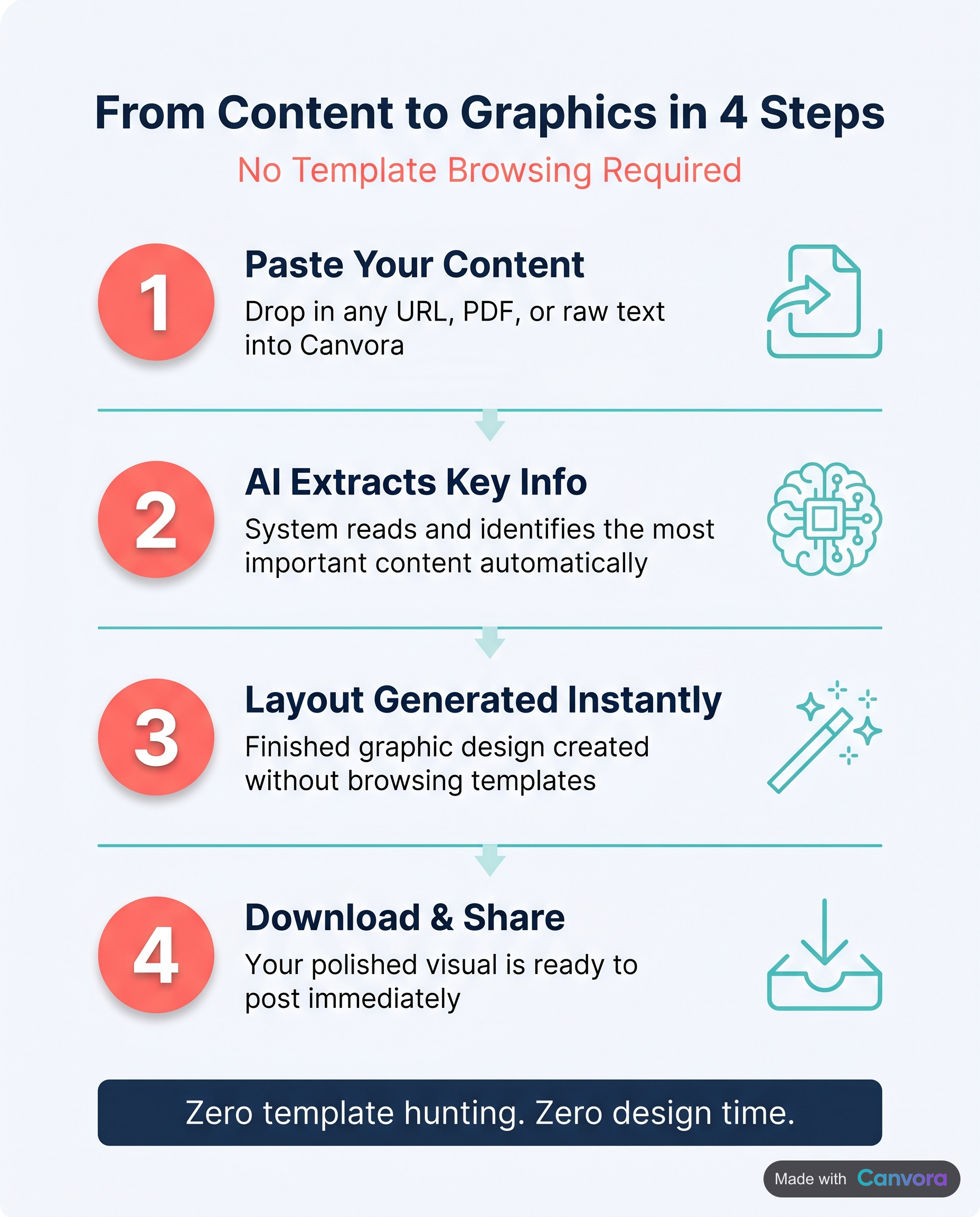 From content to finished graphic–no template selection required.
Canvora automates social media graphic production by reading your content and generating finished visuals – no template browsing, no manual layout work. Feed it a URL, a PDF, a Word document, an image, or plain text, and it extracts the core ideas, writes the on-visual copy, and produces up to 15–20 platform-ready visuals across 100+ formats in about a minute. A single blog post can yield quote cards, stat cards, a blog header, OG images, Pinterest pins, tip cards, an Instagram carousel (up to 15 slides), and a LinkedIn carousel (up to 15 slides) – all in one generation run. Brand kits apply automatically: logo, colors, and fonts are baked in from the start, not added as a finishing step. Starter accounts get one brand kit, Pro accounts get five, and Business accounts get unlimited. Eight visual styles – modern, minimal, bold, elegant, playful, corporate, creative, and dark – let you set the aesthetic before generation rather than correcting it afterward.
From content to finished graphic–no template selection required.
Canvora automates social media graphic production by reading your content and generating finished visuals – no template browsing, no manual layout work. Feed it a URL, a PDF, a Word document, an image, or plain text, and it extracts the core ideas, writes the on-visual copy, and produces up to 15–20 platform-ready visuals across 100+ formats in about a minute. A single blog post can yield quote cards, stat cards, a blog header, OG images, Pinterest pins, tip cards, an Instagram carousel (up to 15 slides), and a LinkedIn carousel (up to 15 slides) – all in one generation run. Brand kits apply automatically: logo, colors, and fonts are baked in from the start, not added as a finishing step. Starter accounts get one brand kit, Pro accounts get five, and Business accounts get unlimited. Eight visual styles – modern, minimal, bold, elegant, playful, corporate, creative, and dark – let you set the aesthetic before generation rather than correcting it afterward.
After generation, refinement happens in plain language. Type "make the headline larger" or "use a darker background" and Canvora updates the visual. No layer panels, no alignment guides, no manual repositioning.
Canvora's Idea Mode: Conversational Visual Design
Not every project starts with a finished document. Idea Mode lets you describe what you want through a chat interface – "a 6-slide LinkedIn carousel about remote work productivity for a SaaS audience" – and Canvora builds from that conversation. It's useful when the brief exists in your head but the content doesn't yet live in a file.
Multilingual Visual Campaigns Without Extra Workflow Steps
Content generation runs in 150+ languages, so producing a Spanish Instagram carousel alongside an English LinkedIn set requires no separate workflow. The text rendered on every visual can be in whichever language the campaign needs – a meaningful difference for teams operating across LATAM, EMEA, or Southeast Asia.
Automating Graphics via API and MCP Integrations
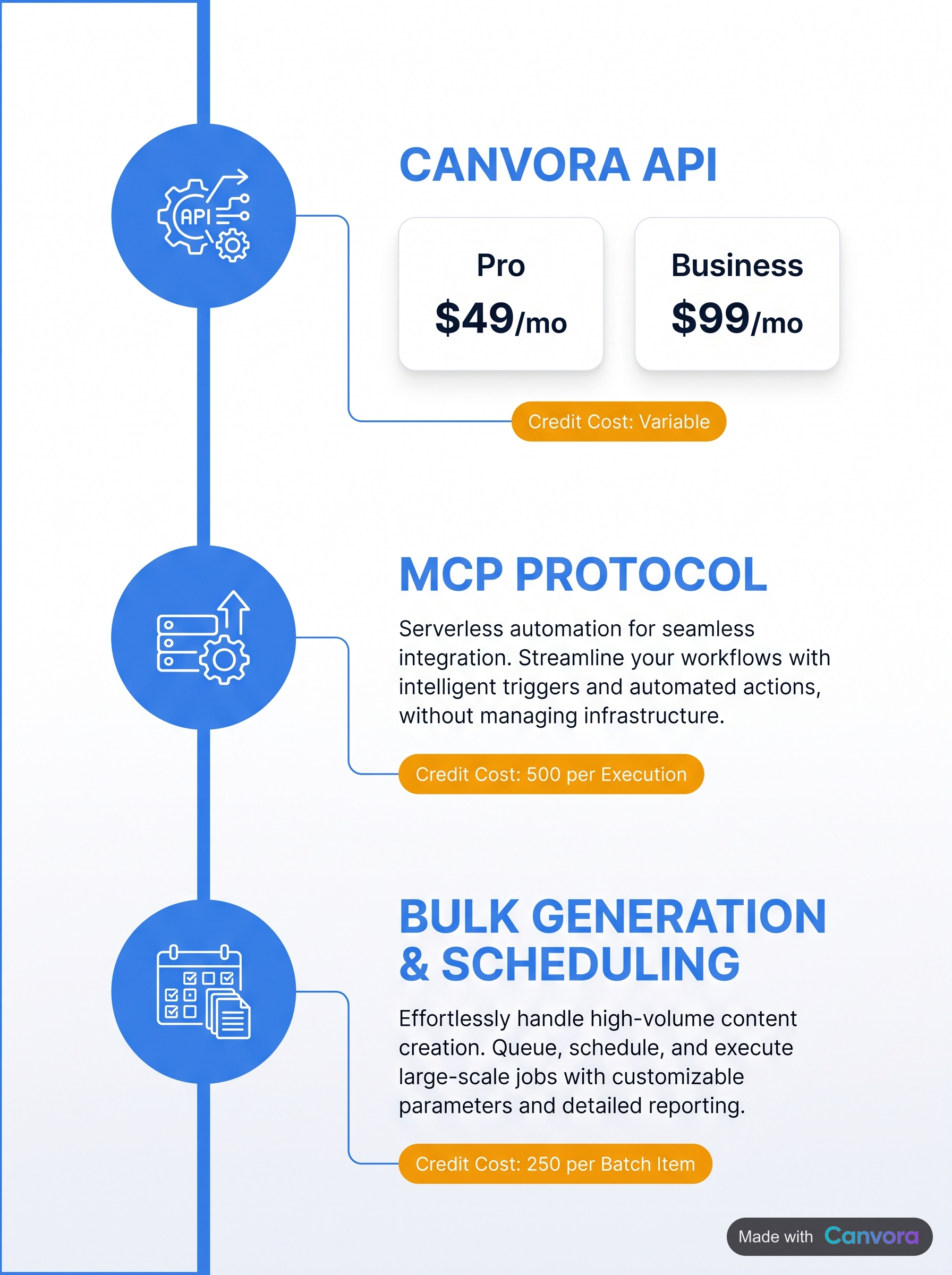 API and MCP unlock headless, bulk, and scheduled graphic generation.
Two distinct automation paths exist here, and which one fits depends on how technical the workflow needs to be.
API and MCP unlock headless, bulk, and scheduled graphic generation.
Two distinct automation paths exist here, and which one fits depends on how technical the workflow needs to be.
API Access for Developers and Automation Engineers
Canvora's API is available on all plans, including Free, and can trigger visual generation from any codebase, CMS, or automation platform. A practical setup: connect the API to a Make or Zapier workflow with a trigger on new CMS publish events – every time a blog post goes live, the workflow fires, Canvora generates the social asset set, and the outputs land wherever the pipeline routes them. No manual handoff, no designer bottleneck.
The API handles the same generation logic available in the UI: multi-format runs, brand kit application, language selection, export format. What it doesn't do is manage scheduling or push directly to social platforms – that step stays in the automation layer.
MCP Integration: Visuals Inside Claude and ChatGPT
The MCP path requires no API key and works on every plan, including Free. After a roughly two-minute OAuth setup (full guide at canvora.ai/help/integrations/mcp-setup), Canvora becomes available as a connected tool inside Claude or ChatGPT.
The workflow is direct: inside a Claude conversation, type "Use Canvora to generate a LinkedIn carousel from this blog post URL" – the carousel generates without leaving the chat. Content strategists who already draft in AI assistants can fold visual production into the same session, rather than context-switching to a separate design tool.
Canvora vs. Template-Based Design Tools: A Workflow Comparison
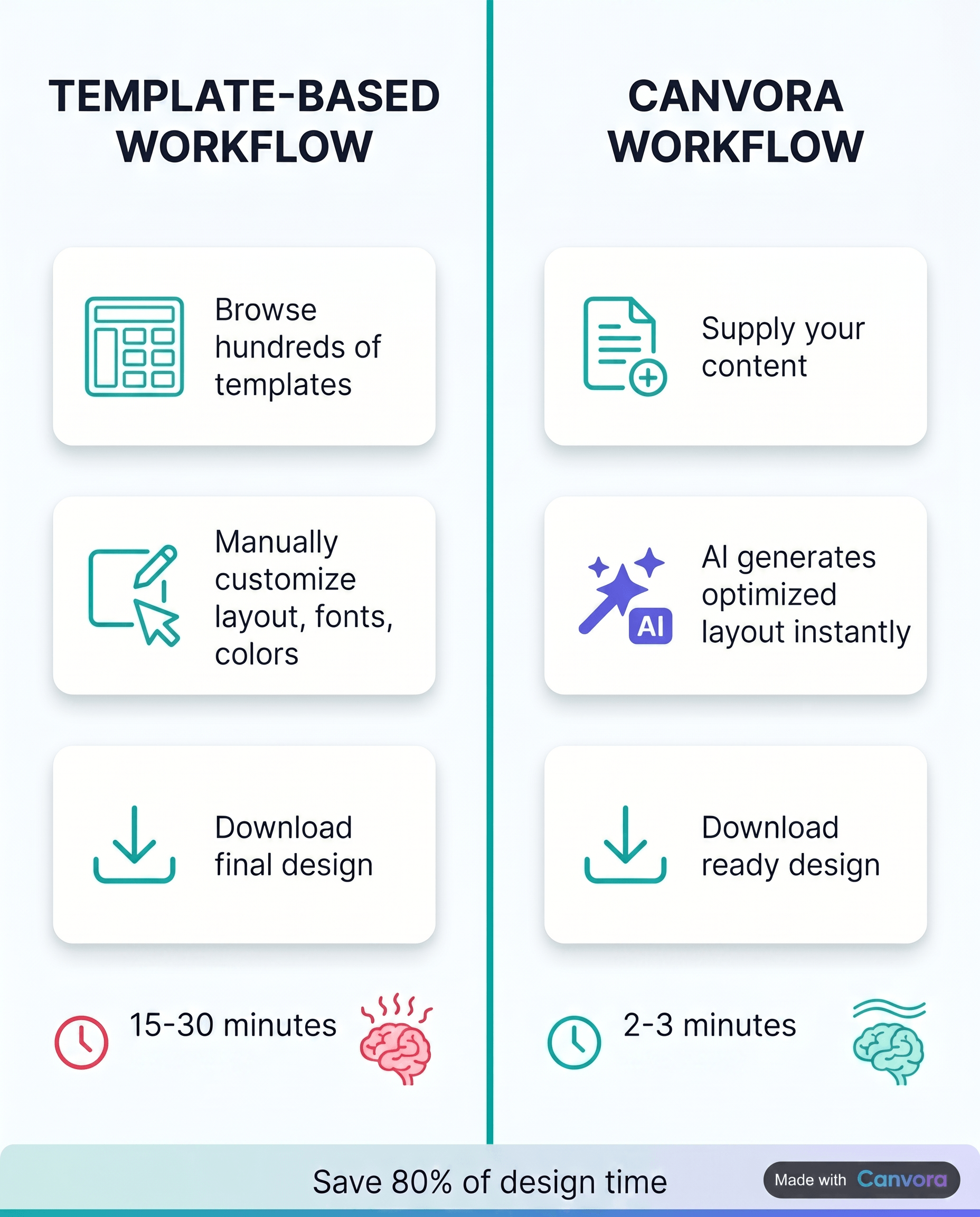 AI-first automation eliminates template browsing and manual layout work.
Canvora and template-based design tools solve the same surface problem – getting a finished graphic – through fundamentally different mechanisms. With Canvora, you supply content (a URL, a PDF, a block of text) and the platform generates up to 15–20 platform-ready visuals across formats in about a minute, with brand kit applied automatically. There is no template library to browse, no drag-and-drop canvas to arrange, and no manual resizing when you need the same content in four different aspect ratios. Template-based tools like Canva, Adobe Express, and Visme work the other direction: you select a template, then customize the text, swap the colors, drop in your images, and adjust the layout by hand. That process gives you precise control over every element. It also takes time – and design judgment – that many content teams simply don't have.
AI-first automation eliminates template browsing and manual layout work.
Canvora and template-based design tools solve the same surface problem – getting a finished graphic – through fundamentally different mechanisms. With Canvora, you supply content (a URL, a PDF, a block of text) and the platform generates up to 15–20 platform-ready visuals across formats in about a minute, with brand kit applied automatically. There is no template library to browse, no drag-and-drop canvas to arrange, and no manual resizing when you need the same content in four different aspect ratios. Template-based tools like Canva, Adobe Express, and Visme work the other direction: you select a template, then customize the text, swap the colors, drop in your images, and adjust the layout by hand. That process gives you precise control over every element. It also takes time – and design judgment – that many content teams simply don't have.
Where Each Approach Wins
Template tools earn their place when the output demands pixel-perfect control: print-ready collateral with exact bleed specifications, complex custom illustrations, or layouts where every element placement is deliberate and non-negotiable. For those jobs, a manual canvas editor is the right tool.
Canvora wins on volume, consistency, and reach. A single blog post becomes a full set of social assets – carousels, quote cards, stat graphics – across platforms, in any of 150+ languages, without rebuilding anything. Teams running content at scale, agencies managing multiple clients, and developers generating visuals programmatically via API get consistent branded output without touching a canvas.
The honest trade-off: Canvora is not a substitute for manual layout control. If moving individual elements by hand is the job, use a template tool. If the content already exists and the job is turning it into visuals at volume, Canvora fits better.
Canvora's Idea Mode: Conversational Visual Design
Not every project starts with finished content. Idea Mode lets you describe what you want through a chat interface – "a bold infographic about remote work productivity for LinkedIn" – and Canvora generates visuals from the conversation. It's the same generation-first model, applied earlier in the creative process. Template tools don't have an equivalent: you still start by picking a layout.
Multilingual Visual Campaigns Without Extra Workflow Steps
For teams publishing in more than one language, template-based tools create a compounding problem: every new language means rebuilding the layout, re-checking text fit, and exporting again. Canvora generates content directly in 150+ languages from the same input, in the same generation run. A campaign that covers English, Spanish, French, and German doesn't require four separate design passes – it requires one.
Building a Repeatable Automation Workflow with Canvora
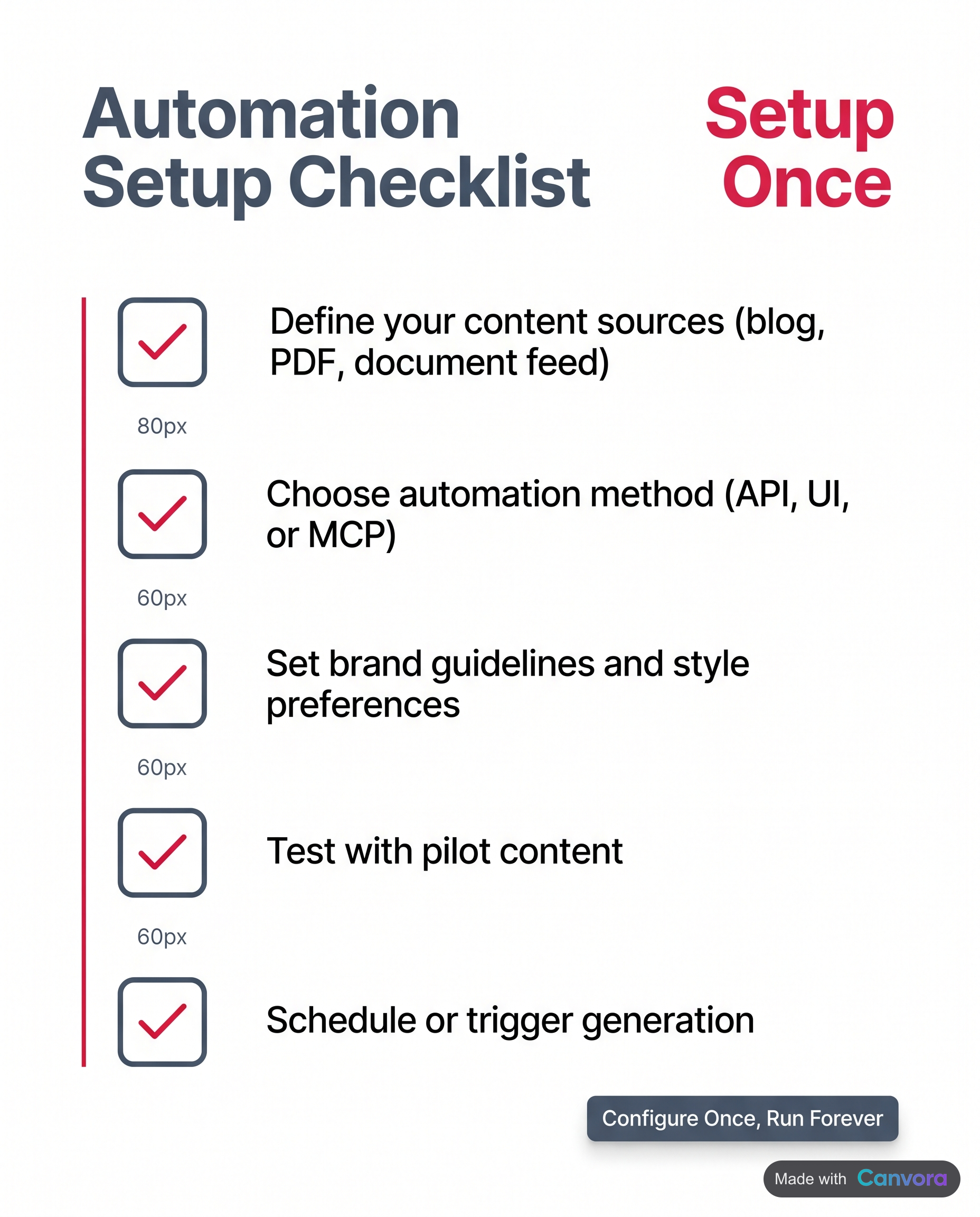 Five steps to a set-it-and-forget-it graphics pipeline.
Set up once, generate repeatedly. That's the core promise of a content-to-visual pipeline built on Canvora – and it holds up in practice.
Five steps to a set-it-and-forget-it graphics pipeline.
Set up once, generate repeatedly. That's the core promise of a content-to-visual pipeline built on Canvora – and it holds up in practice.
Step 1: Configure Your Brand Kit
Before generating anything, spend five minutes uploading your logo, hex colors, and fonts into a brand kit. Every generation after that applies them automatically. No re-entering hex codes per project, no hunting for the right font file. On the Pro plan, you can maintain up to five separate brand kits – useful if you manage multiple clients or product lines.
Step 2: Choose Your Input Method
Pick the input that matches your content source. Paste a blog URL to repurpose a published post. Upload a PDF or DOCX for reports, whitepapers, or briefs. Type or paste plain text for original campaigns. Canvora reads the content and structures the visual output around it – you're not filling in a template.
Step 3: Select Formats and Visual Style
Choose from 100+ output formats – carousels, quote cards, infographics, ads, presentation slides – and pick one of eight visual styles: modern, minimal, bold, elegant, playful, corporate, creative, or dark.
Step 4: Generate and Refine
One generation produces up to 15–20 platform-ready visuals across the formats you selected. Review the output, then refine with natural-language edits: "make the headline larger", "shift to a darker background". No design software required.
Step 5: Export and Publish
Export as PNG, PDF, PPTX, or ZIP. Starter plan and above supports up to 4K resolution. Download and publish to your channels directly.
Step 6 (Optional): Automate Triggers via API or MCP
For teams running a content pipeline, connect Canvora's API (available on all plans) to trigger generation automatically from a CMS, a Google Sheets workflow, or a Make/Zapier automation. Alternatively, use the MCP integration – available on all plans including Free – to generate visuals directly inside Claude or ChatGPT without switching tabs.
Canvora's Idea Mode: Conversational Visual Design
Not every project starts with finished content. Idea Mode lets you describe what you want through a chat interface and work toward a visual collaboratively – useful for campaigns that are still taking shape, or when the brief lives in your head rather than a document.
Multilingual Visual Campaigns Without Extra Workflow Steps
Content generation runs in 150+ languages, so producing a Spanish Instagram carousel and an English LinkedIn carousel from the same source input is a single workflow, not two separate projects – no translation tool, no separate design pass required.
Canvora Pricing and Credit System Explained
Four plans. One credit currency. No per-seat licensing surprises.
Free gives you a one-time 150-credit signup bonus – no monthly renewal. Once those credits are spent, generation stops until you upgrade. Outputs are watermarked, capped at 2K resolution, and the plan includes 1 brand kit but no workspaces. It's enough to run the full workflow end-to-end and see what the output actually looks like. Not enough for production.
Starter at $19/mo resets to 1,000 credits each month. Resolution jumps to 4K, you get one brand kit, one design style preset, and one workspace for up to three members. Sufficient for a solo creator or small team with a steady but modest publishing cadence.
Pro at $49/mo is where the platform opens up for agency and team use: 3,000 credits/mo, five brand kits, five design style presets, three workspaces (10 members each), and full API access for programmatic generation.
Business at $99/mo scales to 7,000 credits/mo with unlimited brand kits, unlimited design style presets, and unlimited workspaces – built for agencies managing multiple client brands simultaneously.
How credits are spent
Every single image costs 10 credits. Every carousel or presentation slide costs 15 credits. Every image edit costs 3 credits.
A 10-slide LinkedIn carousel burns 150 credits (10 slides × 15). A Pro plan user generating nothing but 10-slide carousels can produce roughly 16 complete carousels per month before hitting the credit ceiling – more if the mix includes single-image posts.
Frequently Asked Questions
Q: What is social media graphics automation?
Social media graphics automation means using software to generate platform-ready visuals from your content – a URL, document, or plain text – without manually designing each asset. Instead of browsing templates and customizing layouts, you provide the content and the tool produces finished graphics across multiple formats. Canvora, for example, generates up to 15–20 visuals across 100+ formats from a single input, applying your brand kit automatically. The distinction matters: you're not customizing a starting point, you're receiving finished output.
Q: Can Canvora generate social media graphics automatically without a designer?
Yes. Canvora accepts a URL, PDF, Word document, image, or plain text and generates up to 15–20 platform-ready visuals across 100+ formats in about a minute. You choose from 8 visual styles – modern, minimal, bold, elegant, playful, corporate, creative, or dark – and your brand kit (logo, colors, fonts) applies automatically. No design skills required. After generation, you can refine any visual using natural-language instructions like "make the headline larger" or edit text directly in the Visual Editor.
Q: How does Canvora's API work for automating graphic generation?
Canvora's API is available on all plans, including Free. You can call it from any codebase, CMS, or automation platform – Make and Zapier are common integration points – to trigger visual generation programmatically. For teams that prefer working inside AI assistants rather than writing code, Canvora also connects to Claude and ChatGPT via MCP on all plans, including Free. MCP setup is OAuth-based, takes about 2 minutes, and requires no API key.
Q: How many visuals can Canvora generate from one input?
Canvora generates up to 15–20 platform-ready visuals across multiple formats from a single input in one generation. That total might include quote cards, stat cards, Instagram carousels, LinkedIn carousels, Pinterest pins, and tip cards – all produced together. Individual carousels are capped at 15 slides per platform. The 15–20 figure refers to total distinct visuals across formats, not slides in a single carousel. Those are separate counts and should not be confused.
Q: Does Canvora support languages other than English?
Canvora generates the text that appears on your visuals in 150+ languages – you specify the language at generation time. This makes Canvora practical for international teams and bilingual creators who need localized social campaigns without a separate translation step.
Q: What is the difference between Canvora and Canva for social media graphics?
Canvora is generation-first: paste a URL or document, get finished visuals across formats without touching a layout. Canva is a template-based design tool – you browse templates, then manually customize text, colors, and images. Canva offers more pixel-perfect manual control over individual elements. Canvora is built for output volume, supports content generation in 150+ languages natively, and provides API and MCP integrations for programmatic workflows. The right choice comes down to whether you need manual precision or the ability to produce many finished visuals from existing content.
Q: How much does Canvora cost, and what do the credits cover?
Canvora has four plans: Free (one-time 150-credit signup bonus, watermarked outputs, no monthly renewal), Starter at $19/mo (1,000 credits), Pro at $49/mo (3,000 credits), and Business at $99/mo (7,000 credits). Credits cost 10 per single image, 15 per carousel or presentation slide, and 3 per image edit. API access is included on all plans, including Free. The free plan is for testing the workflow – outputs are watermarked, credits are finite, and they do not replenish each month.
Q: Can I use Canvora inside ChatGPT or Claude to create visuals?
Yes. Canvora integrates with Claude and ChatGPT via MCP (Model Context Protocol) on all plans, including Free. Setup takes about 2 minutes: add Canvora as a connector using OAuth – no API key required. Once connected, prompt your AI assistant to generate visuals directly from the conversation. Start your prompt with "Use Canvora" to ensure the request routes correctly. The full setup guide is at canvora.ai/help/integrations/mcp-setup.
Q: What output formats and file types does Canvora support?
Canvora supports 100+ output formats including social posts, carousels, quote cards, stat cards, infographics, blog headers, OG images, Pinterest pins, presentations, and ad graphics. Files export as PNG, PDF, PPTX, or ZIP. Resolution goes up to 4K on Starter plans and above; the free plan is limited to 2K with watermarked outputs. Canvora does not output SVG or editable vector files – all raster exports are PNG, with document and presentation formats available as PDF and PPTX.
Q: Is social media graphics automation worth it for small teams or solo creators?
For anyone publishing 10 or more social visuals per week without a dedicated designer, automation typically pays for itself in time saved. The main gain is eliminating the template-browsing and manual-resizing steps that consume 20 or more minutes per asset in traditional tools. Canvora's Starter plan at $19/mo provides 1,000 credits monthly – enough for roughly 100 single images, or a practical mix of carousels and cards – making it accessible for solo creators and small teams before the workload justifies a larger plan.
Tools mentioned in this article:
For your team / role:
Generate a week of on-brand graphics from one idea
Paste a URL, PDF, or topic — Canvora ships platform-ready graphics for every channel, in 150+ languages.
Free to start · 150 credits, no card · 150+ languages
More from the blog
7 Best AI Tools for Social Media Graphics (2026)
We compared 7 AI tools for social media graphics on formats, brand consistency, languages and price. Short answer: which one fits you, and why.
Best Free AI Social Media Post Generator
Find the best free AI social media post generator that creates visuals, not just captions. See how Canvora generates 15–20 platform-ready posts. Try free today.