Convert PDF to LinkedIn Carousel with AI
Learn how to convert a PDF to a LinkedIn carousel in under a minute using Canvora. Paste, generate, publish – no design skills needed. Try it free.

On this page
To convert a PDF to a LinkedIn carousel with AI, paste or upload the PDF into Canvora, and the platform generates a ready-to-post multi-slide carousel – along with a full set of supporting social visuals – in under a minute. No template browsing, no slide-by-slide reformatting. Canvora reads the document's content, extracts the key ideas, and produces up to a 10-slide LinkedIn carousel with on-brand headlines, body copy, and visual hierarchy, automatically applying your logo, colors, and fonts from a saved brand kit. The output is a static visual set you can export as PNG, PDF, or PPTX at up to 4K resolution, then post directly to LinkedIn. If the source document is in a language other than English, content generation runs in 150+ languages, so the carousel copy matches your audience – not just your source file. The whole process requires no design skills and no manual layout work.
TL;DR – Key Takeaways
- Upload any PDF directly into Canvora; no conversion or reformatting needed before you start.
- A single generation produces multi-slide LinkedIn carousel plus platform-ready visuals across formats – quote cards, stat cards, Instagram posts, and more – all from the same input.
- Brand kits (logo, colors, fonts) apply automatically, so every slide matches your visual identity without manual adjustments.
- Carousel copy and headlines generate in 150+ languages – useful for teams distributing content across EMEA, LATAM, India, SEA, or any non-English market.
- Export options include PNG, PDF, and PPTX at up to 4K resolution; the files are ready to upload to LinkedIn or hand off to a client.
- You can refine any visual after generation using plain-language edits ("make the headline larger," "shift to a darker background") – no design tool knowledge required.
- Canvora starts free; paid plans begin at $19/month, with brand kit limits scaling from 1 (Starter) to unlimited (Business at $99/month).
What It Means to Convert a PDF to a LinkedIn Carousel
 PDF uploads become native LinkedIn carousels that users swipe through in their feed.
A LinkedIn carousel is a multi-slide post that users swipe through directly in the feed – and on LinkedIn, the native format for that experience is a PDF upload. Converting a PDF into a LinkedIn carousel means something more specific than dragging your original file into a post. It means extracting the key ideas from your document – the findings, arguments, or steps – and reformatting them as a sequence of designed visual slides, each with a clear headline, supporting copy, and consistent branding. The result is a polished PDF you upload to LinkedIn, where it renders as a swipeable deck. Carousels consistently earn higher dwell time and engagement than single-image posts on the platform, because each swipe is a micro-interaction that signals interest to the algorithm. The practical ceiling for a LinkedIn carousel is 10 slides.
PDF uploads become native LinkedIn carousels that users swipe through in their feed.
A LinkedIn carousel is a multi-slide post that users swipe through directly in the feed – and on LinkedIn, the native format for that experience is a PDF upload. Converting a PDF into a LinkedIn carousel means something more specific than dragging your original file into a post. It means extracting the key ideas from your document – the findings, arguments, or steps – and reformatting them as a sequence of designed visual slides, each with a clear headline, supporting copy, and consistent branding. The result is a polished PDF you upload to LinkedIn, where it renders as a swipeable deck. Carousels consistently earn higher dwell time and engagement than single-image posts on the platform, because each swipe is a micro-interaction that signals interest to the algorithm. The practical ceiling for a LinkedIn carousel is 10 slides.
What Canvora Extracts From Your PDF
Drop a PDF into Canvora – a research report, a slide deck, a white paper, a proposal – and the platform reads the content, identifies the load-bearing ideas, and generates a 10-slide LinkedIn carousel with headlines, body copy, and your brand kit applied automatically. You're not getting a screenshot of each page. You're getting a purpose-built visual sequence designed for the feed.
The difference matters. A raw PDF upload looks like a document. A carousel generated from that document's content looks like editorial content.
Editing Your Carousel With Natural Language
Once the carousel is generated, refinements happen through plain instructions. Type make the headline larger or use a darker background on slide 3 and Canvora applies the change. No layer panels, no manual repositioning.
Why Your PDF Needs a Redesign Before It Hits LinkedIn
 LinkedIn feeds demand mobile-first design; boardroom PDFs don't translate directly.
A PDF built for a boardroom or a browser doesn't translate to a LinkedIn feed. The margins are too wide, the text too dense, the slide hierarchy designed for someone who's already sitting down to read. On mobile – where most LinkedIn scrolling happens – a standard PDF renders as a wall of 8pt type that nobody swipes past slide one.
LinkedIn feeds demand mobile-first design; boardroom PDFs don't translate directly.
A PDF built for a boardroom or a browser doesn't translate to a LinkedIn feed. The margins are too wide, the text too dense, the slide hierarchy designed for someone who's already sitting down to read. On mobile – where most LinkedIn scrolling happens – a standard PDF renders as a wall of 8pt type that nobody swipes past slide one.
The problem isn't the content. It's the container.
LinkedIn carousels work on a different logic. Each slide needs a single idea, a visual anchor, and enough white space to breathe. Completion rate is the metric LinkedIn's algorithm watches: if readers drop at slide 2, the post gets buried. If they swipe through to the end, it gets amplified. That means every slide has to earn the next tap – something a repurposed PDF deck almost never does by default.
Brand consistency compounds the problem. A raw PDF export might carry your company's logo on the title slide and nowhere else. Fonts drift. Colors don't match your LinkedIn header. To an audience that judges credibility in under three seconds, inconsistency reads as carelessness.
The traditional fix is manual: open a template tool, rebuild each slide, resize for the feed, add your brand colors, export. Forty minutes of layout work for content you already wrote.
Canvora takes the opposite approach. Paste the PDF in, and the platform extracts the core ideas, restructures them into carousel-ready slides, applies your brand kit automatically – logo, colors, fonts – and returns a 10-slide LinkedIn carousel formatted for feed consumption. The content does the work. The layout is handled.
How to Convert a PDF to a LinkedIn Carousel Using Canvora
 Canvora automates extraction, restructuring, and slide generation in minutes.
To convert a PDF to a LinkedIn carousel using Canvora, upload your PDF directly into the platform – or paste a webpage URL to extract content from – and Canvora extracts the key points, structures them into up to 10 designed carousel slides, and delivers a finished, platform-ready multi-slide post in under a minute. No template hunting, no manual layout work. The AI reads your document, identifies the arguments or data worth surfacing, and writes the headlines and body copy on each slide. You can then edit any slide using plain-language prompts – "make the headline bolder," "shift the background to our brand blue" – and apply a saved brand kit so your logo, colors, and fonts carry through every slide automatically. When you're satisfied, export as PDF and upload directly to LinkedIn as a native carousel post.
Canvora automates extraction, restructuring, and slide generation in minutes.
To convert a PDF to a LinkedIn carousel using Canvora, upload your PDF directly into the platform – or paste a webpage URL to extract content from – and Canvora extracts the key points, structures them into up to 10 designed carousel slides, and delivers a finished, platform-ready multi-slide post in under a minute. No template hunting, no manual layout work. The AI reads your document, identifies the arguments or data worth surfacing, and writes the headlines and body copy on each slide. You can then edit any slide using plain-language prompts – "make the headline bolder," "shift the background to our brand blue" – and apply a saved brand kit so your logo, colors, and fonts carry through every slide automatically. When you're satisfied, export as PDF and upload directly to LinkedIn as a native carousel post.
What Canvora Extracts From Your PDF
Canvora doesn't just reformat your pages. It reads the document's structure – section headers, key statistics, supporting arguments, and conclusions – and decides what belongs on each slide. A 20-page research report might yield a tight 8-slide carousel that surfaces the three headline findings, a key data point, and a clear call to action. Dense source material becomes a scannable, visually coherent story.
The extraction works on any PDF: analyst reports, internal decks, whitepapers, sales one-pagers, or academic papers. If the document is structured, Canvora follows that structure. If it isn't, it prioritizes the highest-signal content.
Editing Your Carousel With Natural Language
Once the initial carousel is generated, refinement happens through conversation. Type "use warmer colors," "make the stat on slide 3 larger," or "rewrite the headline to be more direct" – and Canvora applies the change. There's no layer panel to navigate, no font menu to dig through. For teams managing brand guidelines, applying a saved brand kit takes one click and enforces logo placement, approved colors, and typography across all slides simultaneously.
LinkedIn Carousel Specs You Need to Know in 2026
 Know the specs before uploading to avoid formatting surprises.
LinkedIn carousels are technically PDF uploads, not native slide decks. When you post a carousel on LinkedIn, you're attaching a PDF file – LinkedIn renders each page as a swipeable slide. That distinction matters because it affects how you format, export, and size your content before it goes live.
Know the specs before uploading to avoid formatting surprises.
LinkedIn carousels are technically PDF uploads, not native slide decks. When you post a carousel on LinkedIn, you're attaching a PDF file – LinkedIn renders each page as a swipeable slide. That distinction matters because it affects how you format, export, and size your content before it goes live.
Slide count. LinkedIn supports up to 10 slides per carousel post. Canvora respects this cap – its LinkedIn carousel output tops out at 10 slides, which is enough to tell a complete story without losing readers mid-swipe.
Dimensions. Square (1080×1080px) is the most reliable choice for LinkedIn carousels. It renders consistently across desktop and mobile, and it dominates the feed without getting cropped. Landscape (1920×1080px) works for data-heavy slides where horizontal space earns its keep. Avoid portrait-only layouts – they can clip on desktop.
File size. LinkedIn's PDF upload limit is 100MB. Canvora exports up to 4K resolution, which occasionally produces large files for high-slide carousels. If your exported PDF exceeds the limit, downscale the export resolution before uploading – 1080px is more than sufficient for screen display.
The cover slide. LinkedIn shows the first slide as the post preview before anyone taps to swipe. A title page with your company name and logo is the fastest way to lose the click. Use the first slide as a hook – a sharp claim, a counterintuitive stat, or a direct question. Canvora generates a distinct cover slide by default; you can refine it with a natural-language edit like "make the first slide a bold question, not a title."
Multilingual LinkedIn Carousels: Reaching Audiences Beyond English
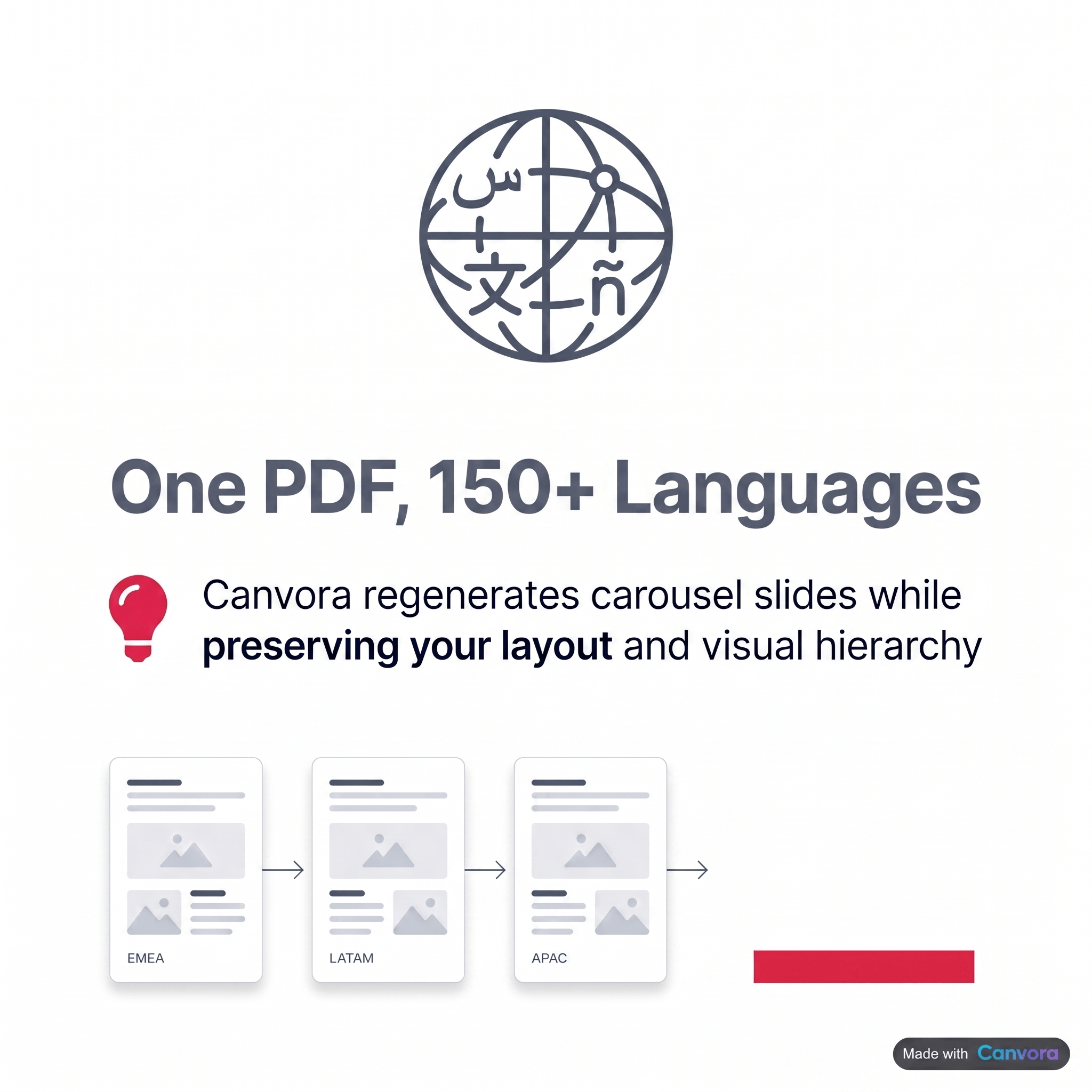 One PDF, 150+ languages–reach professionals worldwide without redesign.
LinkedIn's user base is genuinely global. Professionals in EMEA, LATAM, India, and Southeast Asia scroll the same feed – but they engage more deeply with content written in their native language. An English-only carousel leaves most of that audience at arm's length.
One PDF, 150+ languages–reach professionals worldwide without redesign.
LinkedIn's user base is genuinely global. Professionals in EMEA, LATAM, India, and Southeast Asia scroll the same feed – but they engage more deeply with content written in their native language. An English-only carousel leaves most of that audience at arm's length.
Canvora generates the text on your visuals – headlines, body copy, slide captions – in 150+ languages, all from the same PDF input. Upload an English whitepaper once, and in the same session you can produce a Spanish carousel aimed at LATAM audiences and a Hindi carousel for India, without re-entering a single line of content. The source document is processed once; Canvora handles the linguistic adaptation on every slide.
The 150+ language figure refers to generated content – the words that appear on your visuals. If your team works in English but your audience doesn't, that's exactly the gap this covers.
Why This Matters for LinkedIn Specifically
Most template-based design tools are English-first by default. Localizing a carousel in those platforms means duplicating the project, translating copy manually, then reformatting each slide to fit the new text length. That's a full afternoon for one language pair.
One PDF, Multiple Audience Versions
With Canvora, the workflow is: upload the PDF, select your target languages, generate. A single research report can produce a German carousel for a DACH audience, a Portuguese version for Brazil, and a Bahasa Indonesia version for SEA – all in the same generation run, all carrying your brand kit automatically.
For teams running regional LinkedIn strategies, that's not a minor convenience. It's the difference between a global content program and an English-only one.
Beyond the Carousel: Repurposing Your PDF Into More LinkedIn Content
 One PDF generates carousels, documents, threads, newsletters, and blog posts.
Most tools that convert a PDF to a LinkedIn carousel stop there – one output, one format, done. Canvora doesn't. A single PDF input triggers a full generation run: up to 15–20 platform-ready visuals across formats, produced in under a minute. The LinkedIn carousel is one asset in that set, not the whole story.
One PDF generates carousels, documents, threads, newsletters, and blog posts.
Most tools that convert a PDF to a LinkedIn carousel stop there – one output, one format, done. Canvora doesn't. A single PDF input triggers a full generation run: up to 15–20 platform-ready visuals across formats, produced in under a minute. The LinkedIn carousel is one asset in that set, not the whole story.
What Canvora Extracts From Your PDF
The generation engine reads your document for key claims, statistics, pull quotes, and structured arguments. From those, it builds:
- A LinkedIn carousel (up to 10 slides) – the anchor piece
- Quote cards – single-image posts pulling the sharpest lines from your document
- Stat cards – data points formatted for LinkedIn feed, sized and styled for standalone posts
- Single-image posts – summary or teaser visuals for organic reach
Every output shares the same brand kit – your logo, colors, and fonts applied automatically across the full set. Whether you're on the Pro plan (five brand kits) or Business (unlimited), the visual language stays consistent without a single manual adjustment.
Need to present the source material to a client? Export the carousel as a PPTX file, up to 4K resolution, and it's ready for a slide deck or pitch meeting.
A Practical Drip Strategy
Don't publish everything at once. Schedule the carousel first – it carries the full argument and tends to drive the strongest initial reach on LinkedIn. Then drip the quote cards and stat cards across the following week. Each post reinforces the original piece, extends its shelf life, and keeps your profile active without producing new content from scratch.
Canvora vs. Template-Based Design Tools for PDF Carousels
 AI-first workflows beat template customization for speed and scale.
The core difference between Canvora and template-based design tools isn't speed – it's where the workflow begins. Tools like Canva and Adobe Express start from a blank layout: you browse templates, copy your content slide by slide, adjust typography, reposition elements, and apply your brand colors manually to each frame. For a 10-slide LinkedIn carousel, that process typically runs 20–40 minutes, even for experienced users. Canvora starts from your content instead. Paste or upload your PDF, and the platform reads the document, extracts the key ideas, and generates a complete 10-slide LinkedIn carousel – headlines, body copy, and brand kit applied across every slide automatically. The carousel is ready to review in under a minute. If something needs adjusting, you type the change in plain language rather than hunting through a properties panel. For teams shipping multiple carousels per week, that cumulative difference compounds fast. Canvora is AI-generation-first, which means it does not offer pixel-perfect manual layout control – but for volume content workflows, that is the right trade-off.
AI-first workflows beat template customization for speed and scale.
The core difference between Canvora and template-based design tools isn't speed – it's where the workflow begins. Tools like Canva and Adobe Express start from a blank layout: you browse templates, copy your content slide by slide, adjust typography, reposition elements, and apply your brand colors manually to each frame. For a 10-slide LinkedIn carousel, that process typically runs 20–40 minutes, even for experienced users. Canvora starts from your content instead. Paste or upload your PDF, and the platform reads the document, extracts the key ideas, and generates a complete 10-slide LinkedIn carousel – headlines, body copy, and brand kit applied across every slide automatically. The carousel is ready to review in under a minute. If something needs adjusting, you type the change in plain language rather than hunting through a properties panel. For teams shipping multiple carousels per week, that cumulative difference compounds fast. Canvora is AI-generation-first, which means it does not offer pixel-perfect manual layout control – but for volume content workflows, that is the right trade-off.
What Canvora Extracts From Your PDF
Canvora reads the structural logic of a document, not just its raw text. Upload a research report, a sales deck, or a white paper, and the platform identifies section headers, key statistics, and supporting points – then maps them to carousel slides that follow a logical narrative arc. You are not getting a text dump reformatted into boxes. You are getting an editorially shaped carousel where each slide carries one idea.
Brand kit application happens at generation time. Your logo, brand colors, and fonts are applied across all slides in the same pass – no per-element adjustments required afterward.
Editing Your Carousel With Natural Language
Once the carousel generates, refinements happen through a plain-text chat interface. Type "make the headline larger on slide 3" or "shift to a darker background palette" and Canvora applies the change across the relevant slides. There is no layer panel, no manual font size field. This is a deliberate design choice: Canvora optimizes for getting a publish-ready carousel out the door, not for granular pixel control that most LinkedIn content workflows never actually need.
Common Questions About PDF-to-Carousel Conversion
Before uploading, a few practical details are worth knowing – especially if your PDF contains charts, sensitive data, or needs post-generation edits.
What Canvora Extracts From Your PDF
Canvora reads the text content of your PDF: headings, body copy, bullet points, captions, and any descriptive labels it can parse. That text becomes the source material for headlines, slide copy, and captions across your carousel. Charts, graphs, and data visualizations are not read as images – if a chart carries a key insight, add a plain-text description in a text box or paste the underlying data point alongside the PDF upload so Canvora has something to work with. Tables with clear cell labels generally parse well; heavily formatted infographic-style layouts may lose structure.
Password-protected PDFs cannot be processed. Remove the password before uploading – most PDF readers let you save an unlocked copy via File → Print → Save as PDF.
For confidential documents – internal strategy decks, financial reports, client data – review Canvora's data handling and privacy policy before uploading. When in doubt, strip out sensitive figures and upload a sanitized version.
Editing Your Carousel With Natural Language
Once generation completes, every slide is editable through natural language prompts. Type "make the headline larger on slide 3," "swap the background to a darker blue," or "shorten the body copy on every slide" and Canvora applies the change. No layer panels, no manual repositioning.
When the carousel reads exactly as intended, export as PDF and upload the file directly to LinkedIn as a native document post – the format LinkedIn's algorithm treats as a carousel.
Frequently Asked Questions
Q: How do I convert a PDF to a LinkedIn carousel?
Upload your PDF to Canvora, and the AI extracts key points and generates up to 10 designed carousel slides automatically. Review and edit using natural language prompts ("make the headline larger", "use a darker background"), apply your brand kit, then export as a PDF. Upload that PDF directly to LinkedIn as a carousel post. Generation typically completes in about a minute. Add a few minutes for reviewing, editing, and exporting.
Q: How many slides can a LinkedIn carousel have?
LinkedIn carousels support up to 10 slides per post, and Canvora generates up to 10 slides in a single run. If your source PDF contains more content than fits comfortably in 10 slides, consider splitting it across two carousel posts, or letting Canvora surface the remaining material as standalone quote cards and stat cards for your LinkedIn feed.
Q: Can I use Canvora to generate LinkedIn carousels in languages other than English?
Yes. Canvora generates slide copy – headlines, body text, and captions – in 150+ languages from the same PDF input. You can produce an English carousel and a Spanish or Hindi version in the same session without re-entering any content. The multilingual capability applies to the generated content on the visuals – headlines, body text, and captions.
Q: What file types can I upload to create a LinkedIn carousel?
Canvora accepts PDFs, Word documents, images, plain text, and URLs as input. For a PDF-to-carousel workflow, upload the file directly or paste a webpage URL to extract content from. The AI reads the text content and structures it into carousel slides automatically – no copy-pasting required.
Q: How is Canvora different from using Canva to make a LinkedIn carousel?
Template-based tools like Canva require you to find a template, copy-paste content slide by slide, and adjust layouts manually – a process that typically runs 20–40 minutes per carousel. Canvora starts from your content: paste the PDF, and the AI generates designed slides ready to review and export. The core difference is paste-content-get-visuals versus browse-templates-and-customize.
Q: Can Canvora generate more than just a carousel from my PDF?
Yes. From a single PDF input, Canvora can produce up to 15–20 platform-ready visuals across formats in one generation – the LinkedIn carousel alongside quote cards, stat cards, Instagram posts, Pinterest pins, and more. Every output shares the same brand kit automatically, so your content looks consistent across every format without any extra work.
Q: What format does LinkedIn require for carousel posts?
LinkedIn carousels are uploaded as PDF files – not as native slide decks or image galleries. Canvora exports your generated carousel as a PDF (as well as PNG and PPTX), so you can upload it directly to LinkedIn without any additional conversion step. Exports are available up to 4K resolution.
Q: Does Canvora work for agencies managing multiple LinkedIn accounts?
Yes. The Business plan ($99/mo) includes unlimited brand kits, so agencies can store a separate brand kit for each client and apply it automatically when generating carousels. A team can produce on-brand LinkedIn carousels for multiple clients from the same account without manually swapping logos, colors, or fonts between projects.
Q: What happens if my PDF contains charts or complex graphics?
Canvora reads the text content of your PDF to generate carousel slides. Complex charts, graphs, and embedded images may not transfer directly as visual elements – the AI works from textual data. For chart-heavy PDFs, adding a brief plain-text description of key data points alongside the visuals helps Canvora surface that information as stat cards or callout slides in the carousel.
Q: Is there a free way to try converting a PDF to a LinkedIn carousel with Canvora?
Yes. Canvora offers a free tier with sign-up credits that let you test the PDF-to-carousel workflow before committing to a paid plan. If you need more volume or brand kit storage, paid plans start at Starter ($19/mo), with Pro at $49/mo and Business at $99/mo for teams and agencies requiring unlimited brand kits and higher generation capacity.
Tools mentioned in this article:
Build your LinkedIn carousel in under a minute
Paste a post, article, or idea — Canvora ships a swipe-ready LinkedIn carousel, on brand and in 150+ languages.
Free to start · 150 credits, no card · 150+ languages