How to Use Canvora in ChatGPT: Carousels, Posts and Slides in the Chat
Connect Canvora from ChatGPT’s Plugins directory and make finished carousels, posts and slides in the conversation. Setup, the panel, edits, languages, costs and fixes.
On this page
Canvora is a plugin for ChatGPT that turns what you type into finished visuals: Instagram carousels, LinkedIn posts, stories, slides, thumbnails and ads, in the right size for each platform. You connect it once from ChatGPT's Plugins directory, start a message with @Canvora, and a panel appears in the chat where you choose formats, a style and your brand kit. When you press Create, the designs come back into the same conversation, ready to download.
This guide covers the whole thing: connecting, your first request, every option in the panel, editing, translating, exporting, what it costs, and what to do when ChatGPT answers on its own instead of using Canvora.
TL;DR
- Open Plugins in ChatGPT and search for Canvora (or open the Canvora listing), select Connect and sign in. New Canvora accounts start with 150 free credits.
- Start your message with @Canvora so ChatGPT hands the request to Canvora instead of drawing a single image itself.
- Check the plan in the panel (formats, slides, brand, style) and press Create. Most sets are ready in a minute or two.
- Edit any visual by describing the change, make variations, or ask for the same design in other languages.
- An image costs 10 credits and a carousel slide 15. A six-slide carousel is 90 credits, and failed generations are refunded.
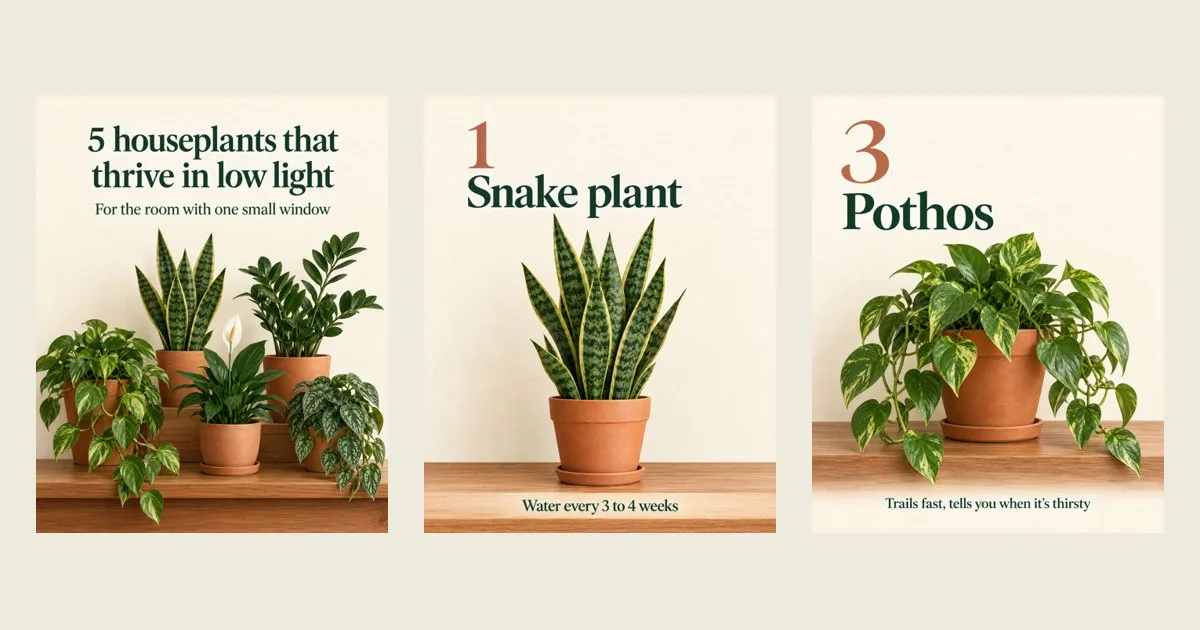
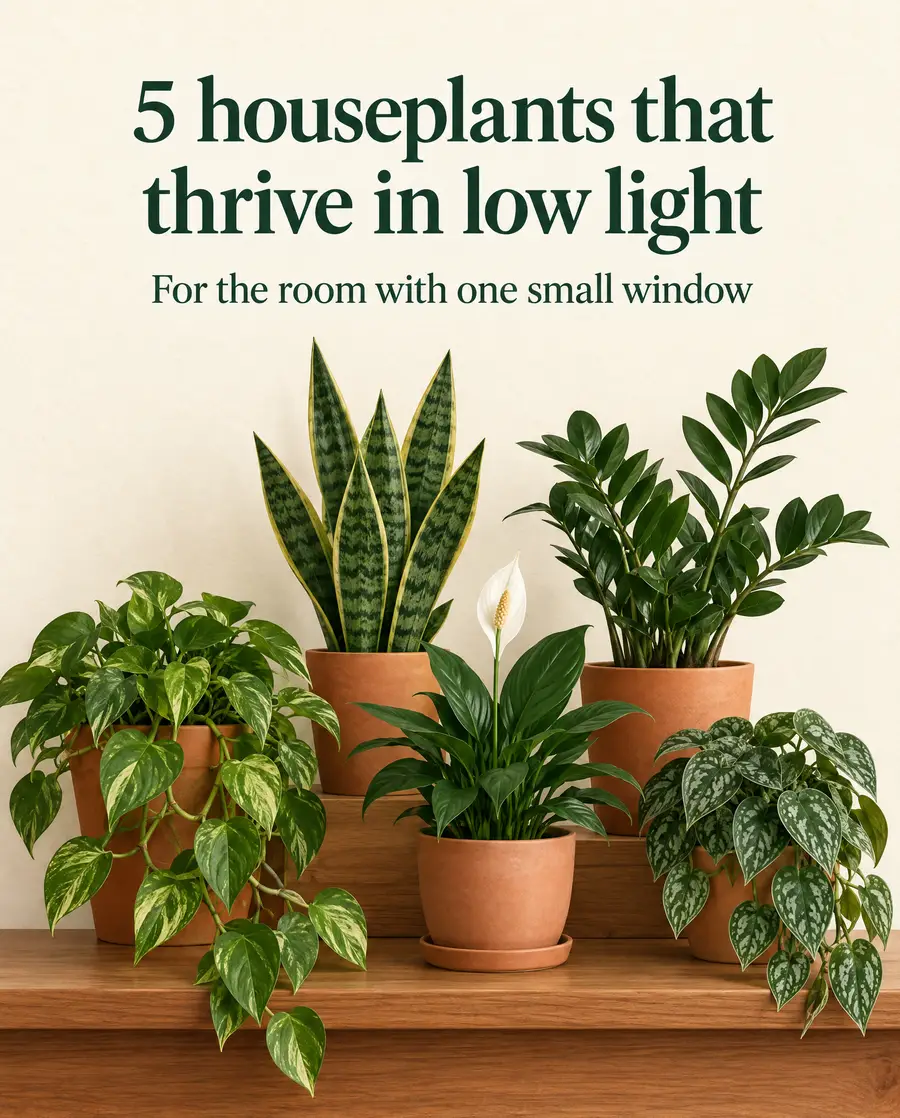 The cover of a six-slide carousel made from one message in ChatGPT. The full set is further down.
What Canvora adds to ChatGPT
ChatGPT can already make an image. What it doesn't do is design a set: six carousel slides that share one layout, a post and a story that match, or a deck where slide 8 still looks like slide 1. That's the job Canvora does.
When you ask through Canvora, you get:
- The right shape for each platform. A portrait Instagram carousel comes out at 4:5, a story at 9:16, a LinkedIn post at the feed's landscape shape, all at high resolution so they stay sharp after upload. You don't crop anything afterwards.
- One look across a whole set. Every slide in a carousel shares the same background, type and accent colour, so it reads as one piece.
- Text that's meant to be read. Headlines, numbers and short body lines are part of the design, in the language you write in.
- Your brand. If you've saved a brand kit in Canvora, its colours, fonts and logo are applied for you.
- Files you can use. Download single images as PNG, JPG or WebP, or a whole set as PDF, PowerPoint or ZIP. Everything is also saved in your Canvora dashboard.
Before you start
You need two things:
- A ChatGPT account. Plugins live in the ChatGPT sidebar on the web, desktop and mobile apps. Whether you can connect one depends on your ChatGPT plan, your workspace settings and your region, so if the Connect button is greyed out, that's the reason. Business and Enterprise workspaces may need an admin to allow it.
- A Canvora account. If you don't have one, you can create it during the connect step with Google or email. With Google your 150 free credits are there straight away. With email, confirm your address first, then the credits are added.
How to connect Canvora to ChatGPT
- Open ChatGPT and select Plugins in the sidebar. In some versions this is still called Apps.
- Search for Canvora and open it, or go straight to the Canvora listing.
- Select Connect. A Canvora sign-in page opens.
- Sign in, or choose Sign up to create an account. You come straight back to the same step.
- On Allow access to your Canvora account?, select Authorize. You're returned to ChatGPT.
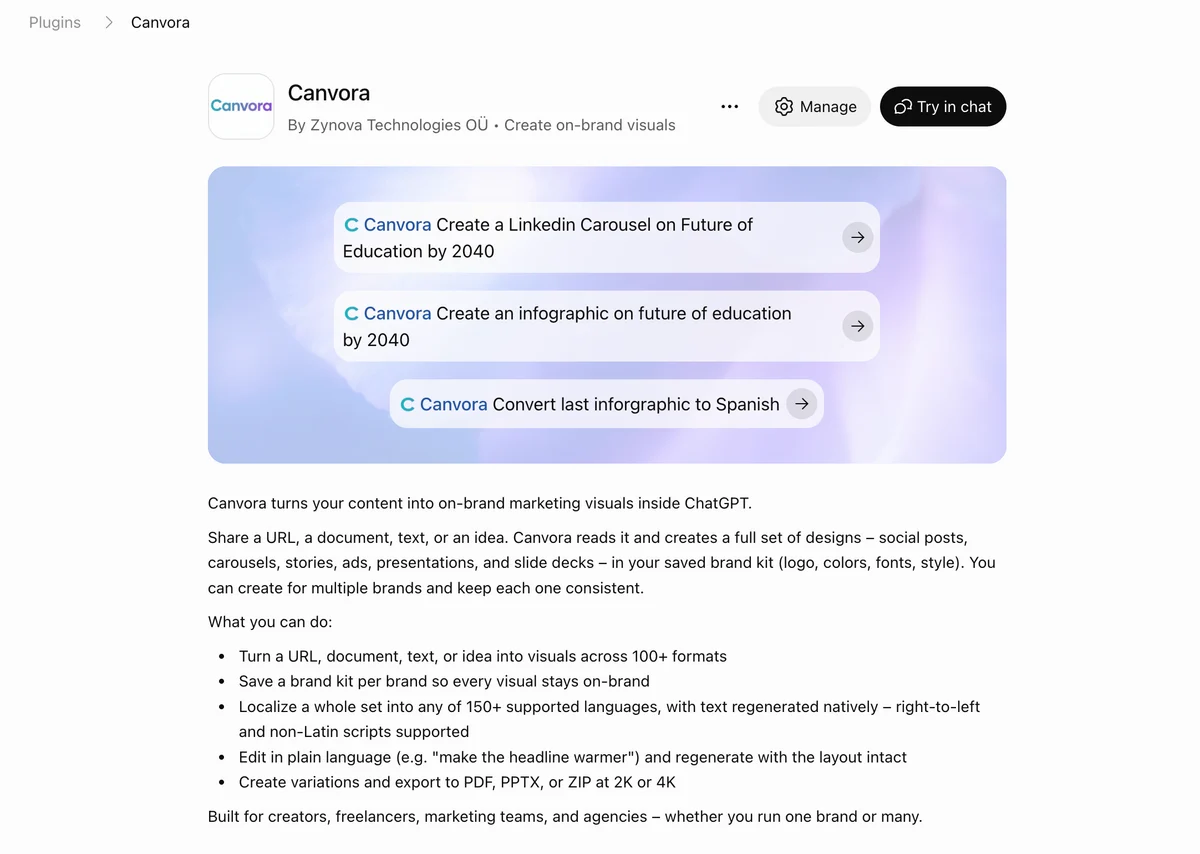 The Canvora listing in ChatGPT's Plugins directory, shown here on an account that's already connected.
That's the only setup. Canvora stays connected until you disconnect it.
Your first request
Start a new chat and type @Canvora, then describe what you want. For example:
@Canvora Make an Instagram carousel for my plant shop, Fern & Fig: 5 houseplants that thrive in low light (snake plant, ZZ plant, pothos, cast iron plant, peace lily), with a short care tip for each. Warm and natural look.
Starting with @Canvora matters. Without it, ChatGPT sometimes decides to draw one picture by itself, and you get a single image instead of a designed set. You can also select Canvora from the + menu under the message box. Both do the same thing.
Canvora reads your message and replies with a short plan: which formats it suggests, how many slides, and a visual direction. Below the reply you'll see the Canvora panel, headed Ready to create.
The panel, option by option
Everything in the panel can be changed before you spend a credit.
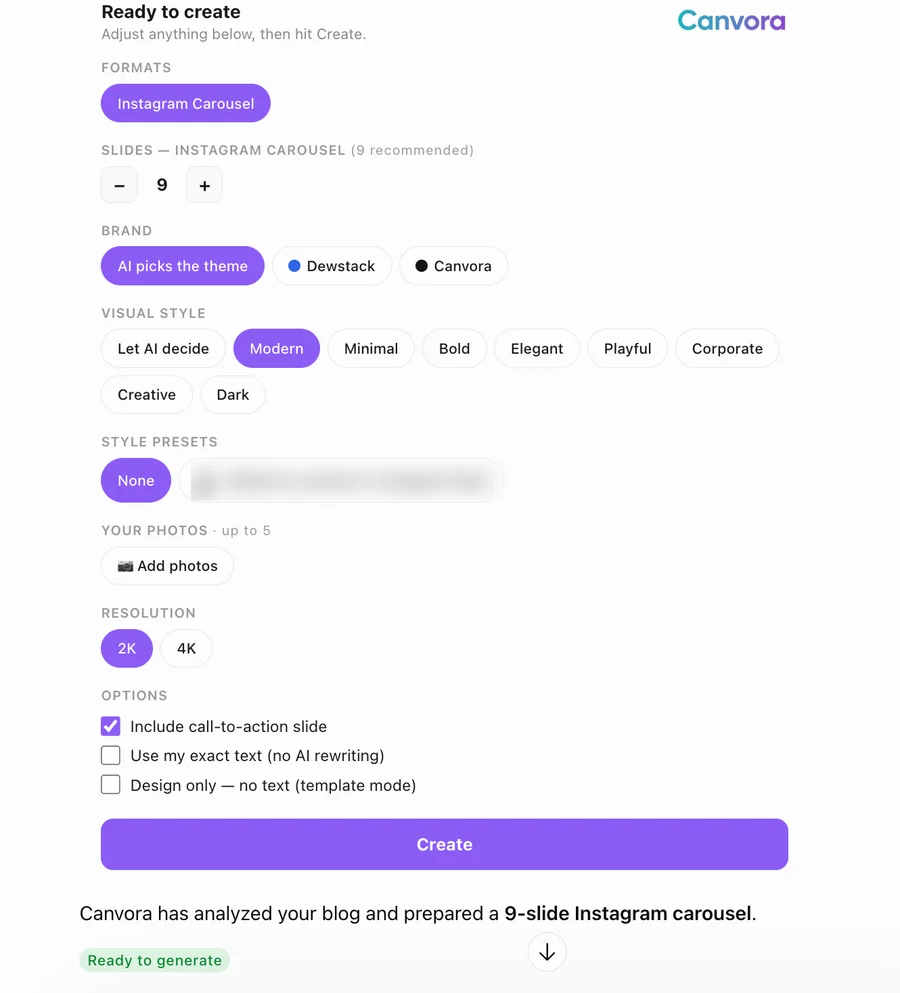 The panel in ChatGPT, set up for a 9-slide Instagram carousel from a blog post.
- Formats. The formats Canvora picked for your request. Remove one, or ask in the chat for more ("add a matching story").
- Slides. For carousels and decks, a − / + stepper with the recommended count next to it. The default is 5 and you can go from 1 to 15. A good rule: one slide for the cover, one per point, and one to close.
- Brand. AI picks the theme, or tap one of your saved brand kits. Tick Embed brand logo on visuals if you want your logo placed on every slide.
- Language. Shown when Canvora notices you're writing in another language, or that your content is in one. Pick the language the visuals should be in.
- Visual style. Let AI decide, or choose modern, minimal, bold, elegant, playful, corporate, creative or dark.
- Style presets. Appear if you've saved a design style in Canvora, so new visuals follow a look you already like.
- Your photos. Add up to 5 photos (a product, your shop, a team shot) to be used inside the designs.
- Resolution. 2K, or 4K on plans that include it.
- Options. Include call-to-action slide (carousels), Use my exact text (no AI rewriting) when every word matters, and Design only — no text when you want a background to add your own text to later.
Press Create. The panel shows progress ("Analyzing your content…", "Crafting the perfect design…") and each visual appears as soon as it's ready.

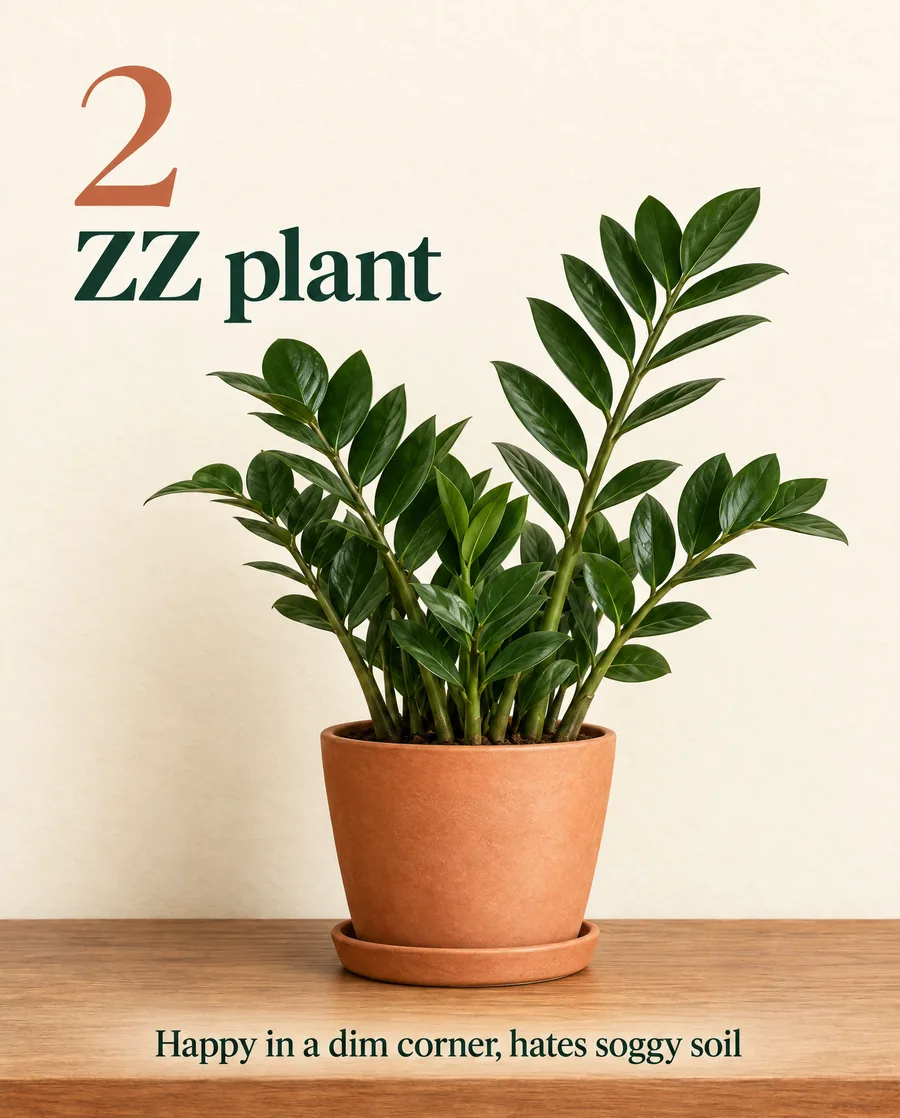
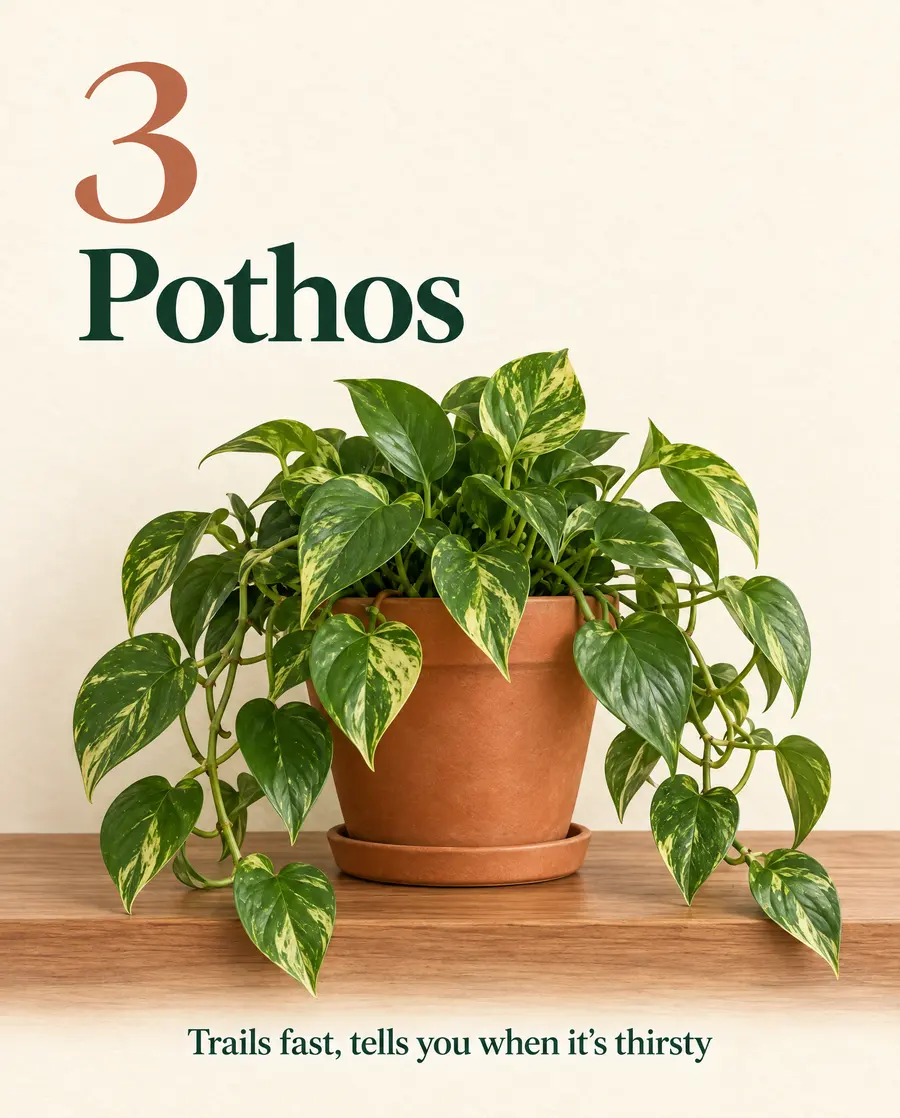
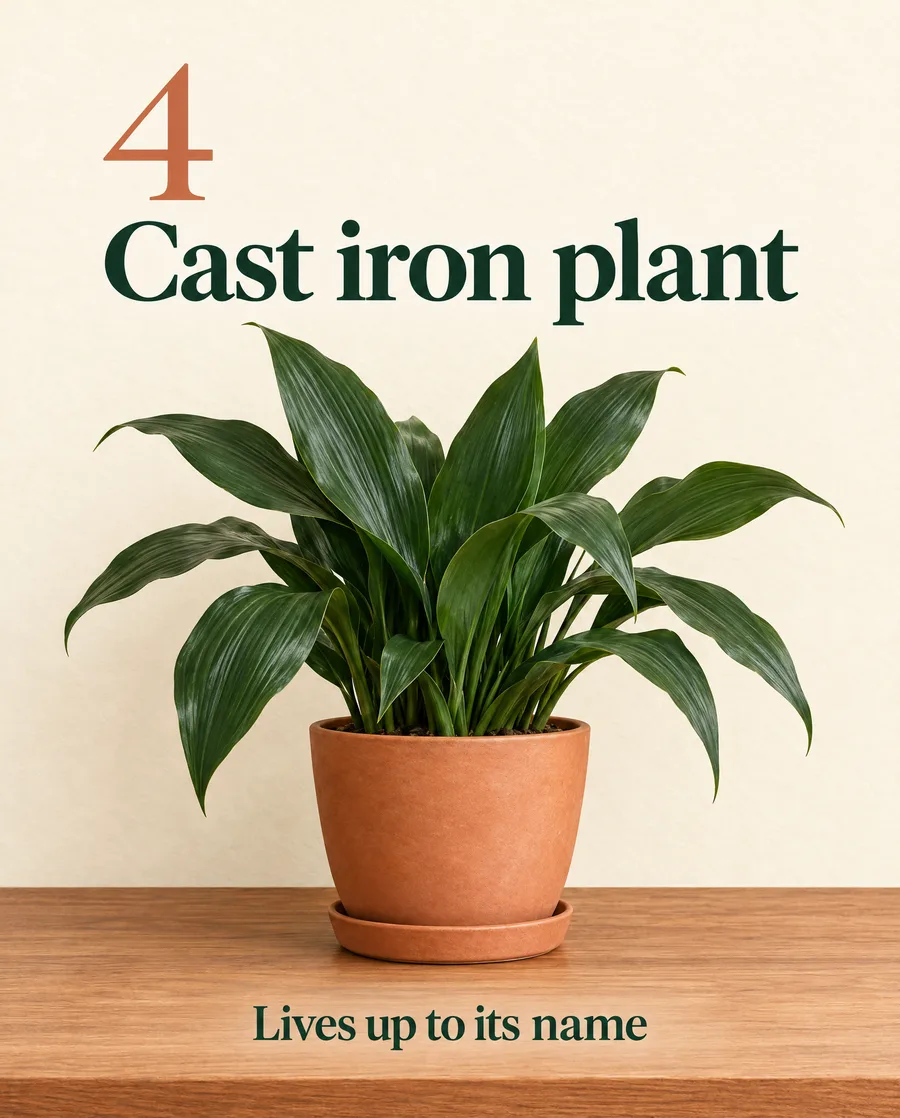

The rest of the Fern & Fig carousel. Same background, type and terracotta accent on every slide.
When it's done, the panel shows Generation Complete with every visual in a row. Slideshow steps through a carousel one slide at a time, Select lets you pick some, and Download gives you the files. The ✏️ and + buttons on each visual open an edit or a variation, and the expand icon at the top opens the panel full screen.
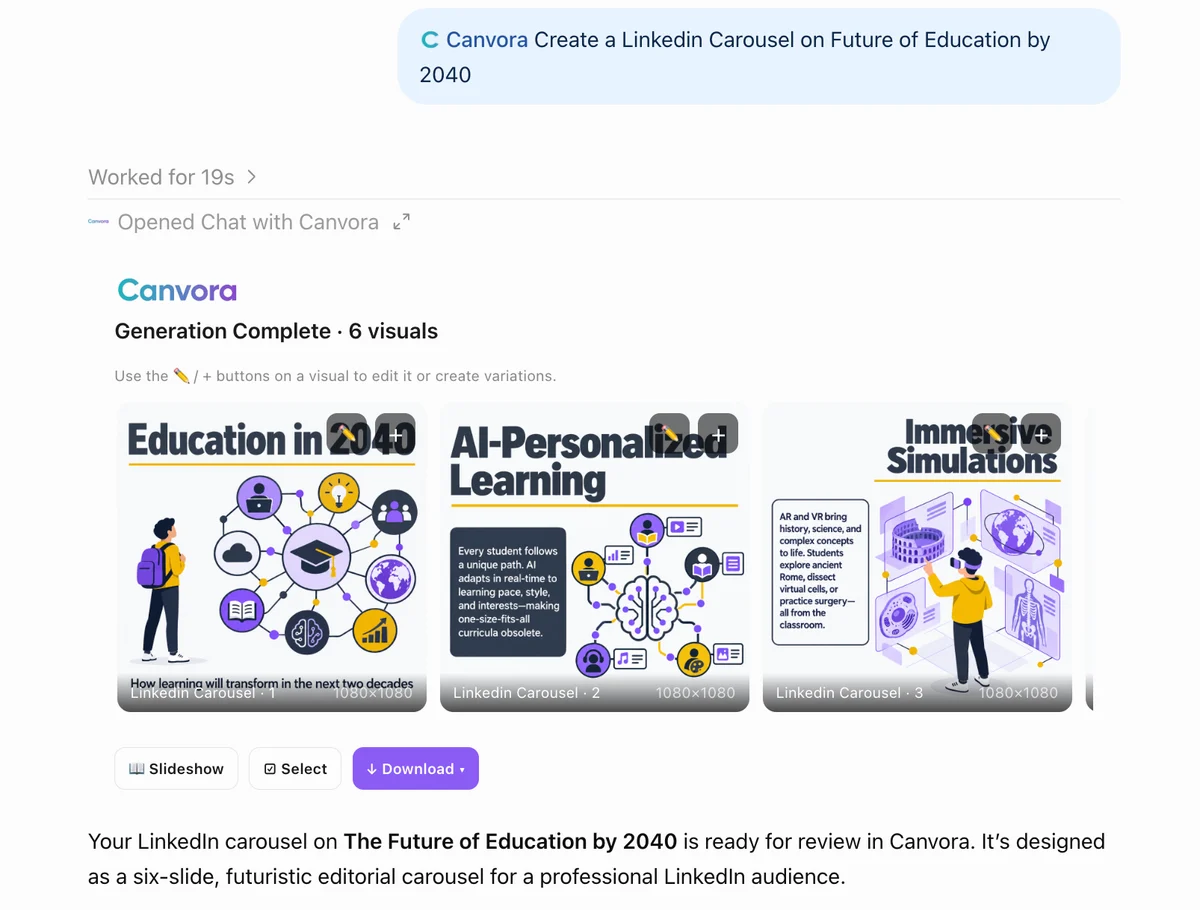 A finished six-slide LinkedIn carousel in ChatGPT.
Make a matching set in one request
You don't need a separate chat for each format. Ask for the set and Canvora designs it as one family:
@Canvora Make a matching Instagram post and story for Fern & Fig announcing our shade plants. Post: "Low light? No problem." Story: "Shade plants are in", Saturday and Sunday 10 AM–6 PM, 14 Mill Lane.
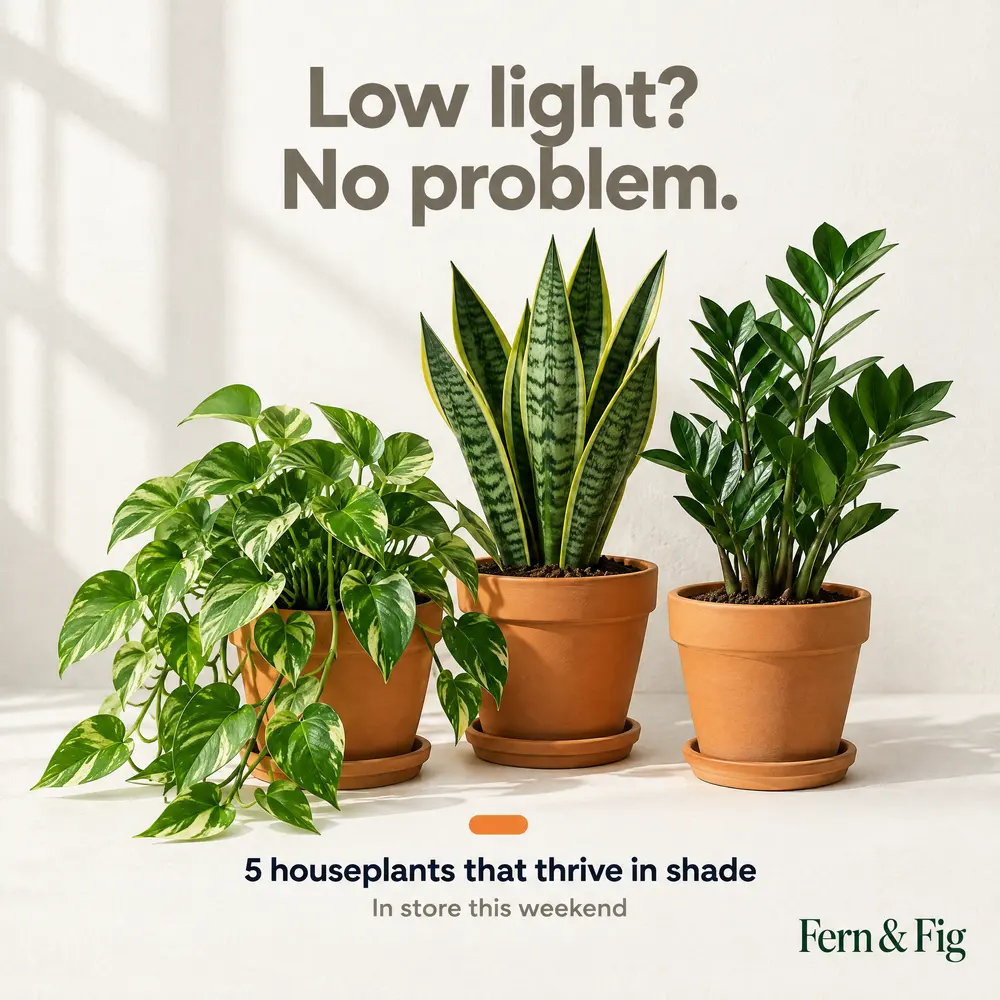
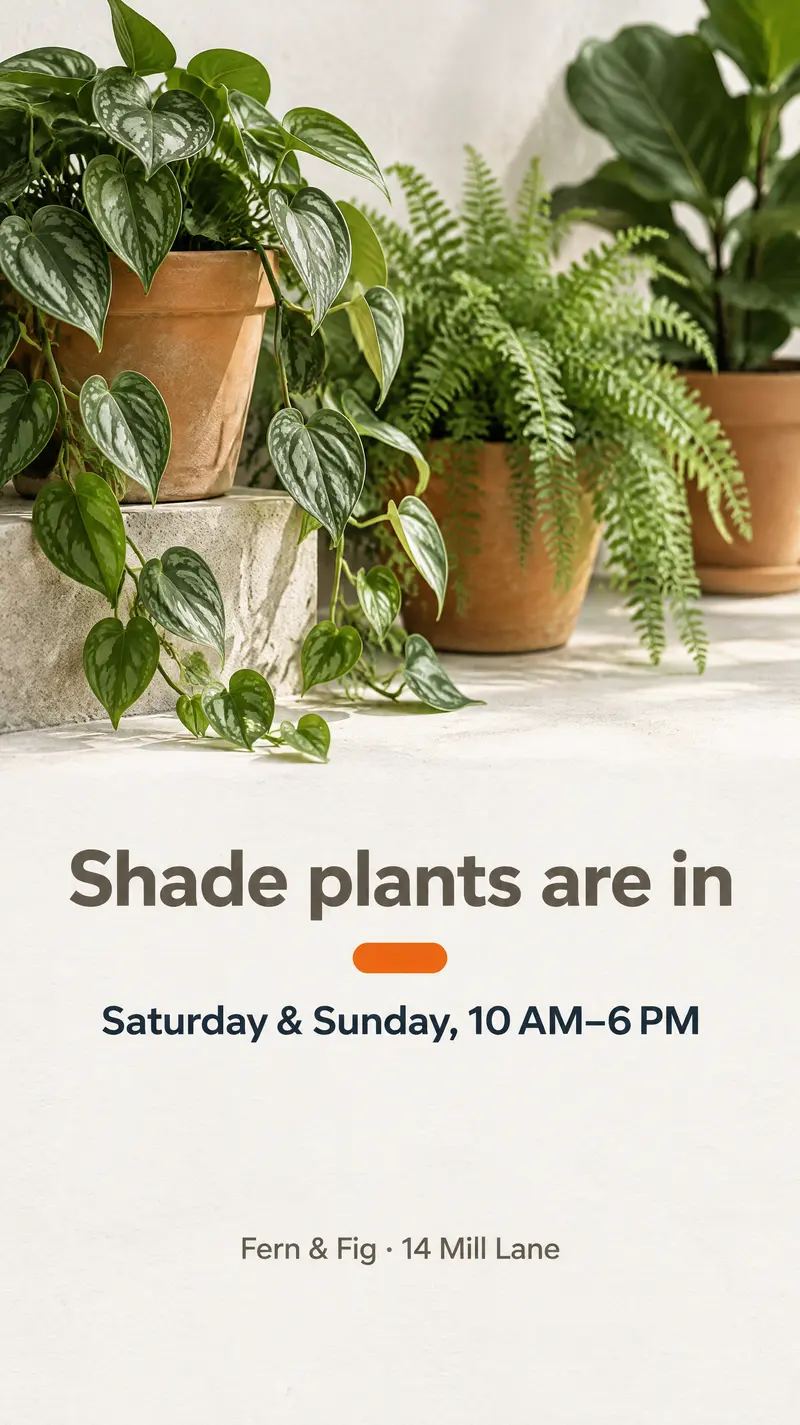
A post and a story from one request. Same palette and type, each laid out for its own shape.
Edit a visual by describing the change
Select the ✏️ button on any visual, type what should change in What should change?, and choose Prepare edit. Canvora shows you what it's about to do. If that's right, choose Apply Edit.
Edits that work well are specific:
- "Change the headline to: Shade-loving plants, in store now"
- "Make the background a warmer cream and the numbers terracotta"
- "Move the shop name to the bottom right"
- "Use my brand kit colours"
Each edit costs 3 credits. The edit history keeps every version, and going back to an earlier one is free.
To put your own photo into a design, ask in the chat ("use my product photo on the cover"). Canvora shows an Add your photo card in the panel; choose Choose photo, pick the image, and the edit carries on from there.
Variations
Want another take on a visual you like? Select + on it and choose how many variations you want, from 1 to 6. Each variation keeps the content and tries a different design, at 10 credits each.
The same design in other languages
Once you're happy with a set, ask for it in other languages:
@Canvora Make Spanish and Arabic versions of this carousel.
Canvora keeps the layout, photos and colours and rewrites only the text. You can ask for up to 10 languages in one request. It costs 10 credits per visual for each language, so a six-slide carousel in two more languages is 120 credits. Brand names, product names, hashtags and links stay exactly as written.
There's a full guide to this, including when to translate a design and when to make it fresh in the new language: Localize a visual into another language. For the languages Canvora handles and how it treats right-to-left scripts like Arabic, see Supported languages.
Download and export
From the gallery's download menu:
- One visual: PNG, JPG or WebP.
- A set: PDF (the format LinkedIn uses for document carousels), PowerPoint, or a ZIP of every image. PDF and PowerPoint come with paid plans; the ZIP works on every plan.
You can also just ask: "export the carousel as a PDF". Everything you make is saved in your Canvora dashboard too, so you can come back to it later, edit it there, or share it with your team.
Brand kits and team workspaces
If you've set up a brand kit at canvora.ai, it shows up as a chip in the panel. Tap it, or say "use my Fern & Fig brand kit". If you have more than one, name the one you want.
If you're part of a team workspace, ask "list my workspaces", then "create this in the Marketing workspace". The credits come from that workspace instead of your personal balance.
Prompts that work well
A few starting points, each with the details that make the result better:
- A blog post into a carousel: "@Canvora Turn this article into a 6-slide LinkedIn carousel, portrait: paste the link". Canvora reads the page for you.
- An event: "@Canvora Instagram post and story for our open studio night: Friday 7 PM, free entry, live music. Editorial look, off-white with one terracotta accent."
- A short deck: "@Canvora 8-slide pitch deck for a neighbourhood bike repair subscription: problem, how it works, pricing ($15 a month), the team, next steps. Corporate style."
- A thumbnail: "@Canvora YouTube thumbnail for my video '30 days without sugar'. Bold, a surprised face on the left, big text on the right."
- In another language: "@Canvora Publicación de Instagram para mi panadería en Valencia: pan de masa madre recién hecho cada mañana, abrimos a las 7."
Give the exact text in quotes when you already know what it should say, and tick Use my exact text so nothing gets rewritten.
What it costs
Canvora runs on credits from your Canvora account, not your ChatGPT plan.
| Action | Credits |
|---|---|
| One image (post, story, thumbnail, banner) | 10 |
| One carousel or presentation slide | 15 |
| Edit a visual | 3 |
| One variation | 10 |
| One visual in one more language | 10 |
| Download, export, convert, revert an edit | Free |
A six-slide carousel costs 90 credits. The panel shows the cost before you press Create, and if a generation fails, its credits go back to your balance automatically. New accounts get 150 free credits; paid plans add a monthly allowance.
Troubleshooting
ChatGPT made an image itself instead of using Canvora. Start the message with @Canvora, or pick Canvora from the + menu, and send it again. Requests that only say "make an image" are the ones ChatGPT tends to keep for itself.
The Connect button is greyed out. Your ChatGPT plan, region or workspace settings don't allow this plugin right now. In a Business or Enterprise workspace, ask your admin to enable it.
It says I don't have enough credits. Ask "what's my Canvora credit balance?", or check it at canvora.ai. A smaller set (fewer slides or formats) may fit what you have.
I connected the wrong Canvora account. In ChatGPT go to Settings → Plugins, open Canvora, and choose Disconnect under the connected account. Then connect again and sign in with the right one.
The panel didn't appear. Make sure Canvora is connected, then send the request again starting with @Canvora. Your finished visuals are always in your Canvora dashboard as well.
What Canvora sees
Canvora receives what ChatGPT sends to it for your request: your message, any link you include (Canvora reads that page), and photos you add in the panel. OpenAI notes that plugins may receive relevant context from the conversation, and what's shared is covered by the plugin's own privacy policy, which ChatGPT shows when you connect. Ours is at canvora.ai/privacy.
Disconnecting stops any further access. Your visuals stay in your Canvora account until you delete them.
FAQ
Is Canvora free to use in ChatGPT? Connecting is free, and new Canvora accounts get 150 free credits, enough for a six-slide carousel and a few single posts. After that you can choose a monthly plan or buy credits.
Do I need ChatGPT Plus? No specific ChatGPT plan is required by Canvora. Whether plugins are available to you depends on your ChatGPT plan, region and workspace, which OpenAI controls.
Does it work in the ChatGPT mobile app? Yes. You can use Canvora in the mobile app once it's connected. Connecting is easiest on the web or desktop.
Can I use my own logo and colours? Yes. Save a brand kit at canvora.ai once, then pick it in the panel or ask for it by name.
Can it make visuals in my language? Yes. Write your request in the language you want, or say which language the visuals should be in. See Supported languages.
Where do my visuals go? They appear in the chat and are saved in your Canvora dashboard, where you can download, edit or share them later.
I use Claude, not ChatGPT. Does it work there? Yes. Canvora connects to Claude as a connector. Here's how: How to make carousels in Claude with Canvora.
Turn your content into a carousel now
Paste a URL, PDF, or idea — Canvora generates a ready-to-post carousel, on brand and in 150+ languages.
Free to start · 150 credits, no card · 150+ languages