How to Make Carousels in Claude with Canvora (LinkedIn & Instagram)
Add Canvora to Claude as a custom connector and turn your notes or a link into a designed LinkedIn or Instagram carousel. Setup, prompts, edits, PDF export and costs.
On this page
Claude is good at the thinking part of a carousel: finding the five points worth making, cutting each one down to a line, ordering them so the last slide lands. What it can't do on its own is design the slides. Connect Canvora and it can. You stay in the same conversation, Claude sends the finished points to Canvora, and you get back a set of designed slides in the right size for LinkedIn or Instagram.
This guide walks through the setup (about two minutes, once), then a real example from first message to PDF, and the prompts and edits that make carousels come out well.
TL;DR
- In Claude, go to Customize → Connectors → + → Add custom connector, name it Canvora, paste
https://api.canvora.ai/mcp, and sign in to Canvora. - Turn Canvora on for a chat from the + menu under Connectors, then ask: "Use Canvora to turn this into a 6-slide LinkedIn carousel."
- Claude shows you the plan first (formats, slide count, style, credits). Nothing is created until you say yes.
- The slides come back as a numbered list of links, and they're saved in your Canvora dashboard. Edit text, colours, layout or brand by asking.
- A slide costs 15 credits, so a six-slide carousel is 90. New Canvora accounts get 150 free credits.
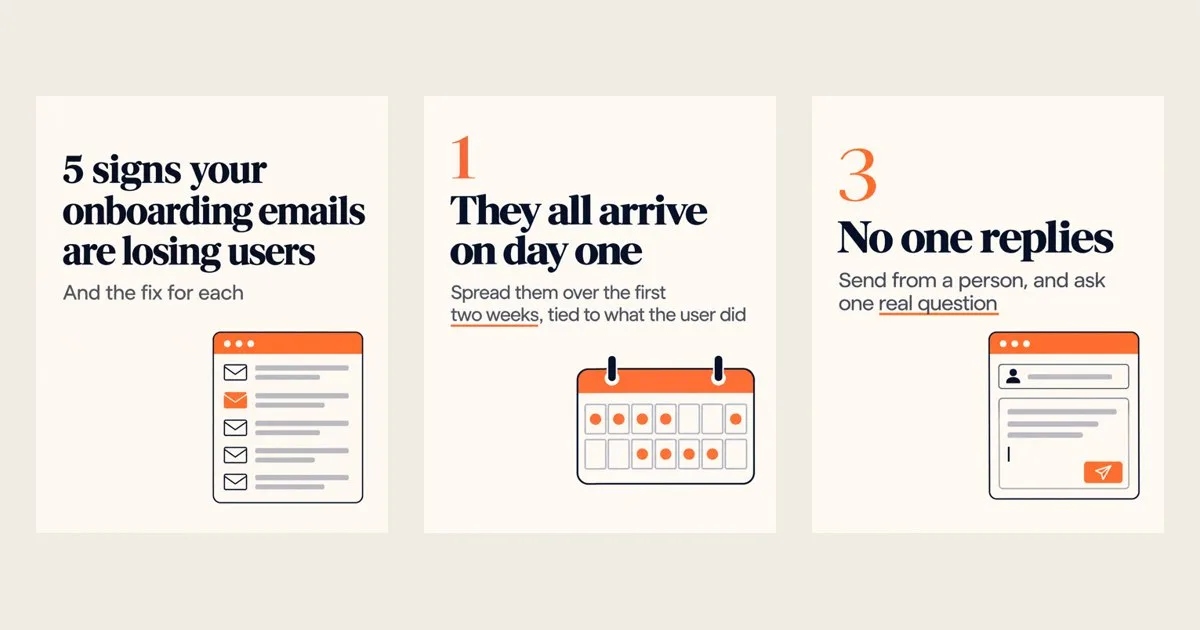
 The cover of the carousel built in this guide. All six slides are below.
Connect Canvora to Claude
You do this once, on Claude's website or desktop app. Custom connectors can't be added from the mobile app, but once added they're tied to your account.
- In Claude, open Customize and go to Connectors.
- Select +, then Add custom connector.
- Enter the name Canvora and this server URL:
https://api.canvora.ai/mcp
- Select Add. If Claude first asks how you'll sign in, choose Sign in now. A Canvora sign-in page opens. Sign in, or create an account (Google gets you your free credits straight away; with email, confirm your address first).
- On Allow access to your Canvora account?, select Authorize. You're back in Claude, and Canvora is listed under your connectors.
No client ID or secret is needed. Claude's free plan allows one custom connector; paid plans allow more. On Team and Enterprise plans an owner adds the connector under organization settings, and each member then selects Connect.
If you also use Claude Code, connectors you add on claude.ai show up there when you're signed in with the same account.
Turn it on in a chat
In a conversation, select + below the message box, open Connectors, and make sure Canvora is switched on. When a request is clearly about visuals, starting it with "Use Canvora" makes sure Claude reaches for it.
Step 1: Give Claude the content
There are three good ways to start, depending on what you have.
You have a finished piece. Paste a link or the text and ask for the carousel:
Use Canvora to turn this article into a 6-slide LinkedIn carousel, portrait: link
Canvora reads the page itself, so you don't need to copy it in.
You have rough notes. Let Claude shape them first, then design:
Here are my notes from our activation review. Pull out the five clearest signs that our onboarding emails lose users, with a one-line fix for each. Keep each point under 12 words.
Read what Claude gives you, adjust anything that isn't quite right, then:
Good. Use Canvora to make that a LinkedIn carousel: a cover, one slide per point, and the last point as the closing slide. Editorial look, off-white background, one orange accent.
You know exactly what each slide should say. Write it out slide by slide and add "use my exact text". Canvora will design around your words without rewriting them.
Step 2: Check the plan
Before anything is made, Claude shows you what Canvora is about to do: the format (for example, LinkedIn carousel, portrait), the number of slides, the visual style, whether there's a call-to-action slide, and which of your brand kits are available. It also says what it will cost.
This is the moment to change things: "make it 7 slides", "use my Fieldnote brand kit", "no call-to-action slide". When it looks right, say so ("yes, go ahead") and Claude starts the generation.
Step 3: Get the slides
Most carousels take a minute or two. When they're ready, Claude replies with a numbered list, one line per slide, with the format, the size, and a link to open or download each one. The same set appears in your Canvora dashboard.
Here's the carousel from the notes above, six portrait slides (4:5):
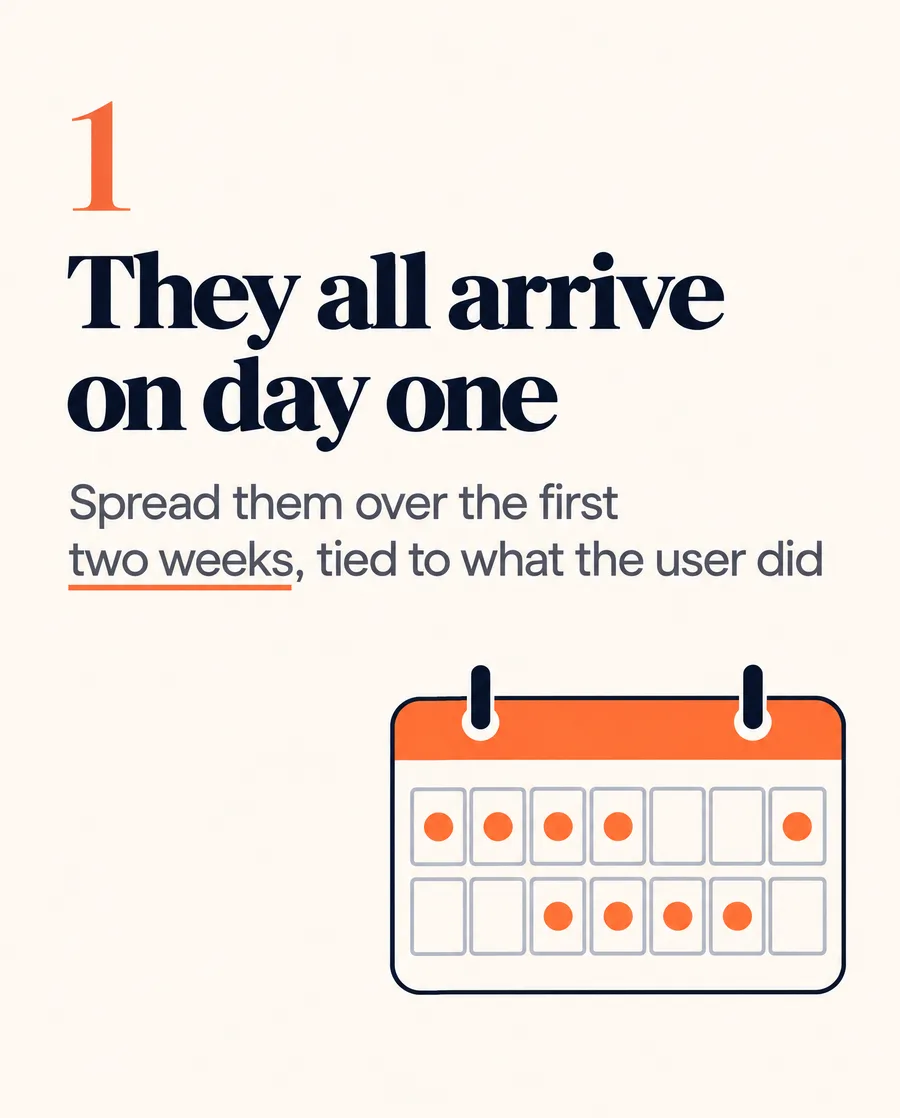


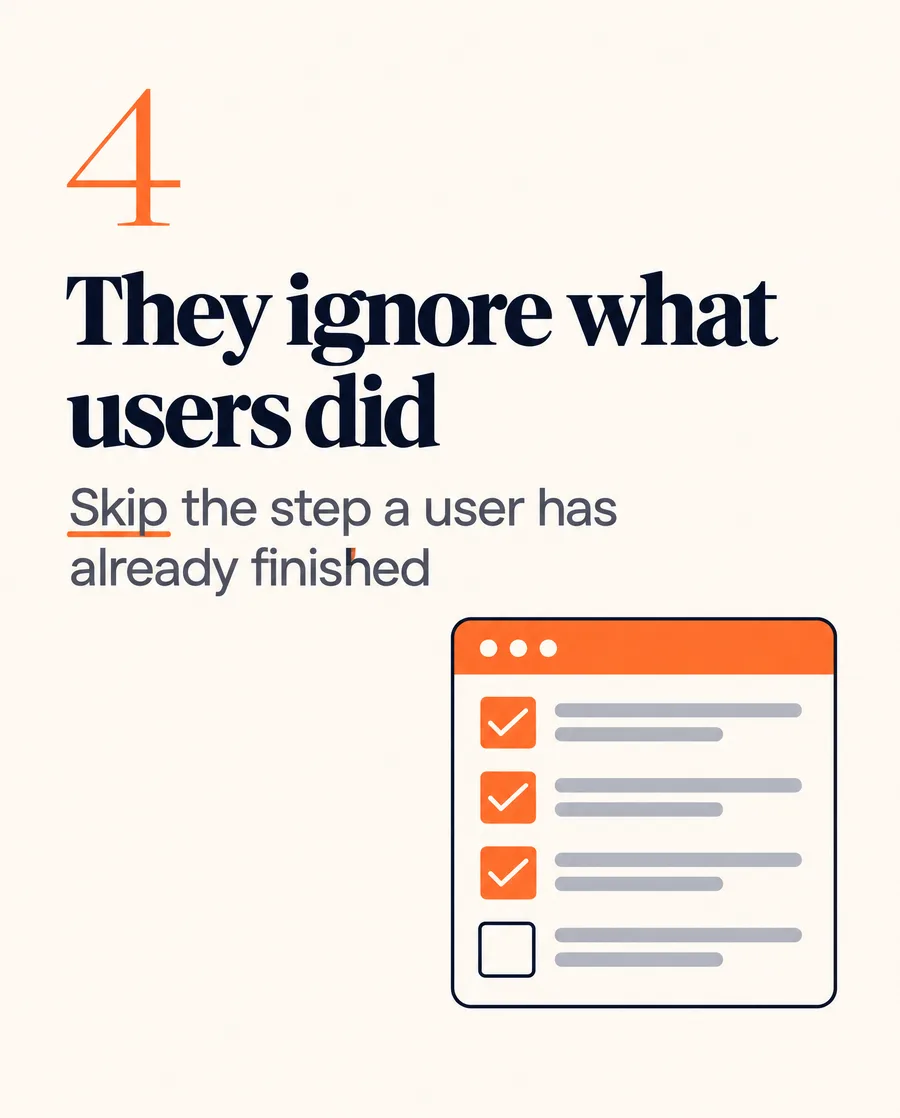
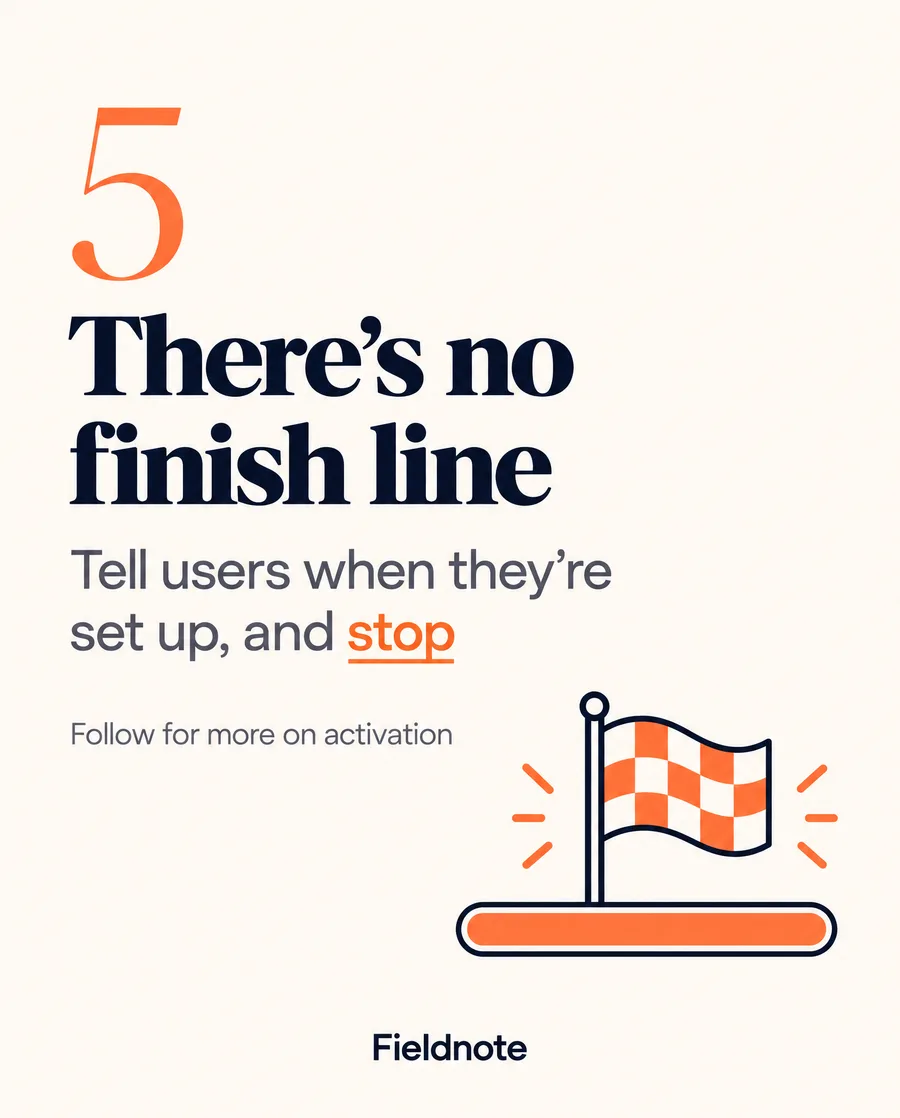
One background, one serif for headlines, one sans for the body, and a single orange accent used for the number and one highlight per slide.
Step 4: Refine it
You don't have to accept the first version. Ask for changes in plain words and say which slide you mean. Through Claude, Canvora edits four kinds of things:
- Text. "On slide 3, change the headline to: Every email asks before it gives."
- Colour. "Make the accent our brand blue, #1F4FFF, on every slide."
- Layout. "Move the slide numbers to the top right and give the headline more room."
- Brand. "Apply my Fieldnote brand kit to the whole carousel."
Claude shows you the planned change first, then applies it when you confirm. An edit costs 3 credits, the edit history keeps every version, and reverting is free. Changes to what an image shows (swapping a photo or the subject) are done in the Canvora editor; Claude will give you the link.
If you'd rather see a different design altogether, ask for variations: "Make 2 variations of the cover."
Step 5: Export it for LinkedIn
LinkedIn shows carousels as document posts, which are PDFs. Ask:
Export the carousel as a PDF.
Claude replies with a download link. You can also get a PowerPoint file or a ZIP of all the images. PDF and PowerPoint export come with paid plans; on the free plan, ask for the ZIP and upload the images instead. On LinkedIn, start a post, choose Add a document, upload the PDF and give it a title.
For Instagram, download the slides as images (PNG or JPG) and upload them in order.
Step 6: Make it in other languages
If your audience isn't only English-speaking:
Make Spanish and German versions of this carousel.
Canvora keeps the design and rewrites the text, up to 10 languages in one request, at 10 credits per slide for each language. Claude gives you a set of links per language. More on how this works: Localize a visual into another language.
Carousel formats and sizes
Ask for any of these by name ("an Instagram carousel, portrait", "a TikTok photo carousel"):
| Platform | Format | Platform size | Shape |
|---|---|---|---|
| Carousel, portrait | 1080×1350 | 4:5 | |
| Carousel, square | 1080×1080 | 1:1 | |
| Carousel, vertical | 1080×1920 | 9:16 | |
| Carousel, portrait | 1080×1350 | 4:5 | |
| Carousel, square | 1080×1080 | 1:1 | |
| Carousel | 1080×1080 | 1:1 | |
| TikTok | Photo carousel | 1080×1920 | 9:16 |
| Threads | Carousel | 1080×1080 | 1:1 |
| X | Thread images | 1600×900 | 16:9 |
| X | Multi-image post (up to 4) | 1200×675 | 16:9 |
Canvora's files come in that shape at a higher resolution than the platform size, so they stay sharp after upload. Portrait (4:5) takes up the most room in the LinkedIn and Instagram feeds, which is why it's the usual choice. Carousels can run from 3 to 15 slides; 5 is the default.
How to get carousels that read well
These come from making a lot of them:
- One idea per slide. If a slide needs two sentences to explain itself, it's two slides.
- Count your slides from your points. A cover, one slide per point, and a closing slide. Five points make a 6- or 7-slide carousel. Ask for fewer slides than you have points and some will get merged.
- Write the headline as the takeaway. "They all arrive on day one" works better than "Email timing".
- Describe the look in a sentence. One background colour, one accent, the kind of type. "Editorial, off-white, one orange accent" gives a calmer set than "make it pop".
- Use exact text for anything that's been approved. Say "use my exact text" and Canvora won't reword it.
- Save a brand kit. Set your colours, fonts and logo once at canvora.ai and say "use my brand kit" in any chat.
What it costs
| Action | Credits |
|---|---|
| One carousel slide | 15 |
| One single image (post, banner, thumbnail) | 10 |
| Edit a slide | 3 |
| One variation | 10 |
| One slide in one more language | 10 |
| Export as PDF, PowerPoint or ZIP | Free |
A six-slide carousel is 90 credits. Claude tells you the cost in the plan before anything is made, and a failed generation is refunded automatically. New Canvora accounts get 150 free credits; plans add a monthly allowance.
Troubleshooting
Claude wrote the slides as text instead of designing them. Check that Canvora is switched on in the + → Connectors menu for this chat, then ask again starting with "Use Canvora to…".
The sign-in page keeps coming back. Sign in to canvora.ai in the same browser first, then go back to Claude and select Connect on the Canvora connector again.
I want to use my own photo. Photos can't be attached to Canvora from Claude. Open canvora.ai/create, add your photo there, and ask for the carousel in the same way.
I need to change the connector. Remove Canvora from Customize → Connectors and add it again with the same URL.
FAQ
Is Canvora an official Claude connector? Canvora connects through Claude's custom connectors, which use the open Model Context Protocol (MCP). You add it with the server URL above; it works on Claude's web and desktop apps and in Claude Code.
Do I need a paid Claude plan? No. Claude's free plan allows one custom connector. The visuals use Canvora credits, not Claude usage.
Can Claude show the slides inside the chat? Claude gives you a link for each slide, which opens the full-size image. The whole set is also in your Canvora dashboard.
Can I make an Instagram carousel too? Yes. Ask for an Instagram carousel (portrait or square), or both a LinkedIn and an Instagram version in one request.
Does it work in other languages? Yes. Write the content in the language you want, or ask for translated versions of a finished carousel. See Supported languages.
I use ChatGPT as well. Is there a version there? Yes, Canvora is in ChatGPT's Plugins directory: How to use Canvora in ChatGPT.
Build your LinkedIn carousel in under a minute
Paste a post, article, or idea — Canvora ships a swipe-ready LinkedIn carousel, on brand and in 150+ languages.
Free to start · 150 credits, no card · 150+ languages