The Napkin AI Alternative for Finished, Branded Visual Sets
Pick Napkin AI for quick diagrams inside a doc or deck you're already writing. Pick Canvora when you need finished, on-brand visuals, or a whole set (infographic, carousel, deck and posts) from the same content.
The short answer
Choose Napkin AI if you want quick diagrams, flowcharts and charts made from text inside the doc you're writing, with fine inline editing and SVG export, on a very small budget. Choose Canvora if you need finished, on-brand visuals or a whole set (infographic, carousel, deck and posts) from the same content. Napkin AI's paid plans start at $9/person/month; Canvora has credit packs from $10 with no subscription.
By Canvora · Updated November 6, 2026
| Feature | Canvora | Napkin AI |
|---|---|---|
| Best for | Finished, branded visual sets | Quick diagrams inside docs and slides |
| Starting price | Free credits; packs from $10; plans from $19/month | Free plan; Plus $9/person/month |
| Output | 100+ formats: infographics, carousels, decks, posts | Diagrams, flowcharts, mind maps, charts, slides |
| Exports | PNG, JPG, WebP; PDF and PowerPoint on paid plans or packs | PNG, PDF; PowerPoint and SVG on paid plans |
| Languages | 150+, typeset natively | 60+ languages |
| In ChatGPT and Claude | Yes, plus MCP server and API | REST API on every plan, with Make and n8n |
Napkin AI vs Canvora: feature by feature
See exactly how Canvora compares. We're transparent about where we excel and where Napkin AI might be better.
| Feature | Canvora | Napkin AI | Edge |
|---|---|---|---|
| Where You Work | Describe what you need in the Canvora app, ChatGPT or Claude, and get finished visuals back | Write or paste text in Napkin, select a passage and turn it into a visual right next to it | Napkin AI |
| Editing a Diagram | Visual Editor and chat edits for text, colors and layout | Fine inline control over every shape, icon, connector and label, plus editable SVG export | Napkin AI |
| Finished Marketing Visuals | Complete designs with typography, imagery and your logo: posts, ads, stories, thumbnails, flyers | Clean diagrams, charts and infographics meant to sit inside a doc or slide | Canvora |
| Full Sets From One Input | One brief becomes an infographic, a carousel of up to 15 slides, a deck and posts in matching style | Mostly one visual at a time, plus a Slides feature (in beta) for decks | Canvora |
| Brand Consistency | Brand kits with your colors, fonts and logo applied to every format | Brand styles (3 on Plus, unlimited on Pro) and custom fonts on Pro | Similar |
| Languages | Designs typeset natively in 150+ languages; localize a finished set and keep the design | Creates visuals in 60+ languages | Canvora |
| Price | Free credits to start, credit packs from $10, monthly plans from $19 | Generous free plan and paid plans from $9 per person per month | Napkin AI |
| Exports | PNG, JPG and WebP, plus PDF and PowerPoint on paid plans and credit packs | PNG and PDF on Free; PowerPoint and editable SVG on paid plans | Napkin AI |
| AI Assistants and Agents | Approved app inside ChatGPT, works inside Claude, plus MCP server and REST API | REST API on every plan, with Make and n8n connections | Canvora |
4
Canvora Leads
1
Similar
4
Napkin AI Leads
Infographics Canvora made
Real Canvora outputs, not mockups: finished infographics with title, layout, icons and typography designed together, ready to post or print.
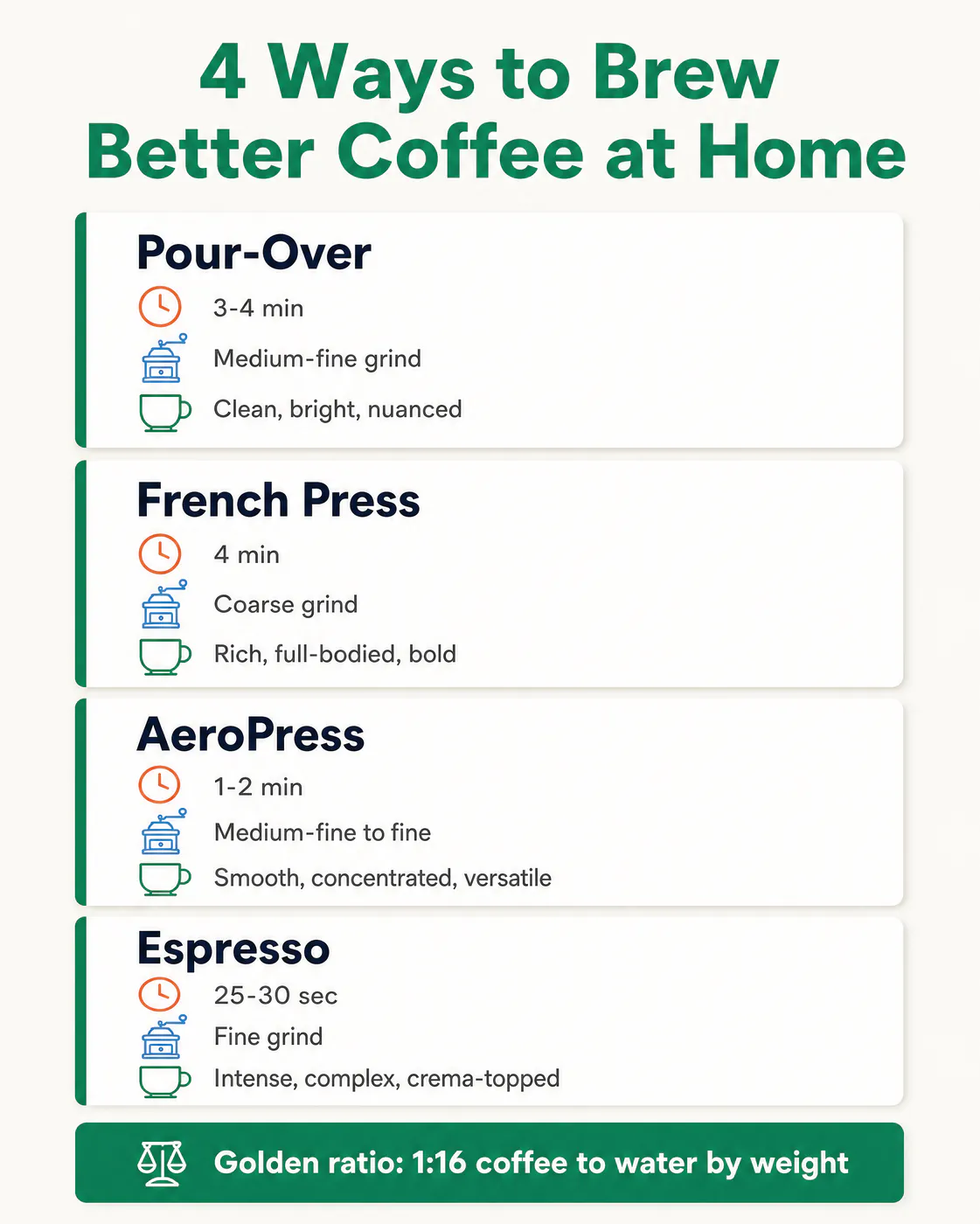
Comparison infographic
Four brewing methods compared on time, grind and taste, with a highlighted takeaway at the bottom.
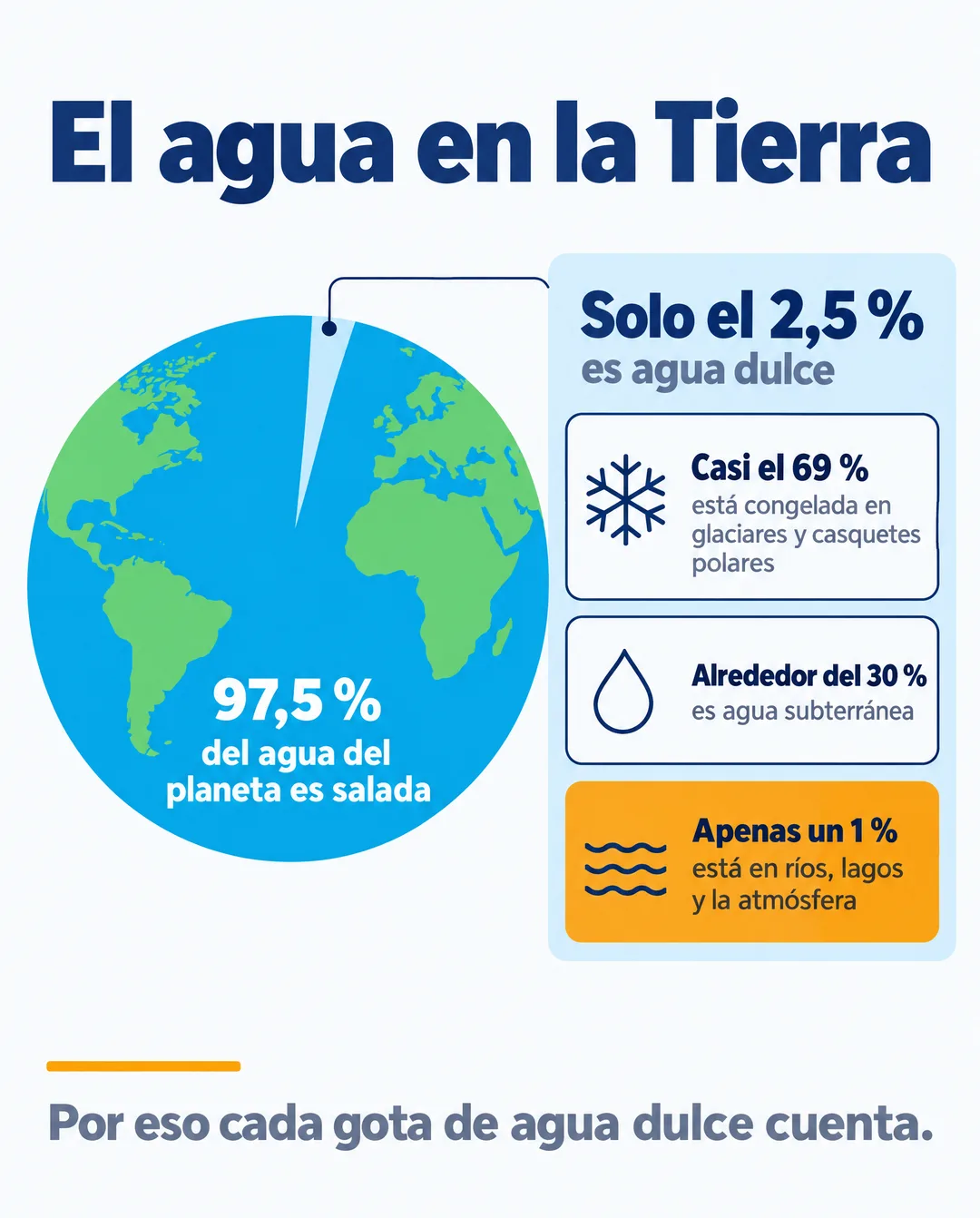
Data infographic in Spanish
A globe chart and breakdown of Earth's fresh water, typeset natively in Spanish with Spanish number formatting.
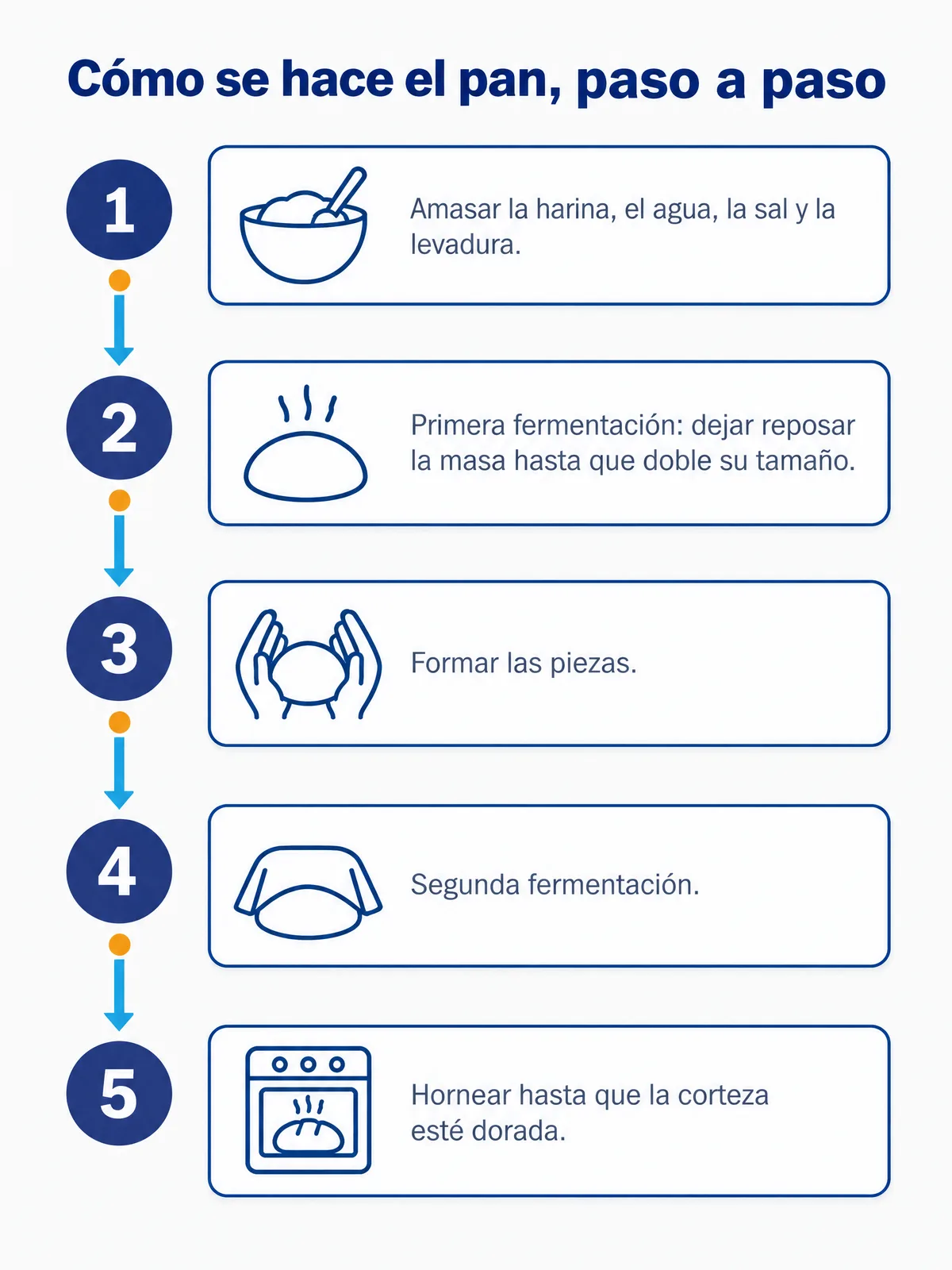
Step-by-step process
A five-step process with custom line icons and connectors, in Spanish.
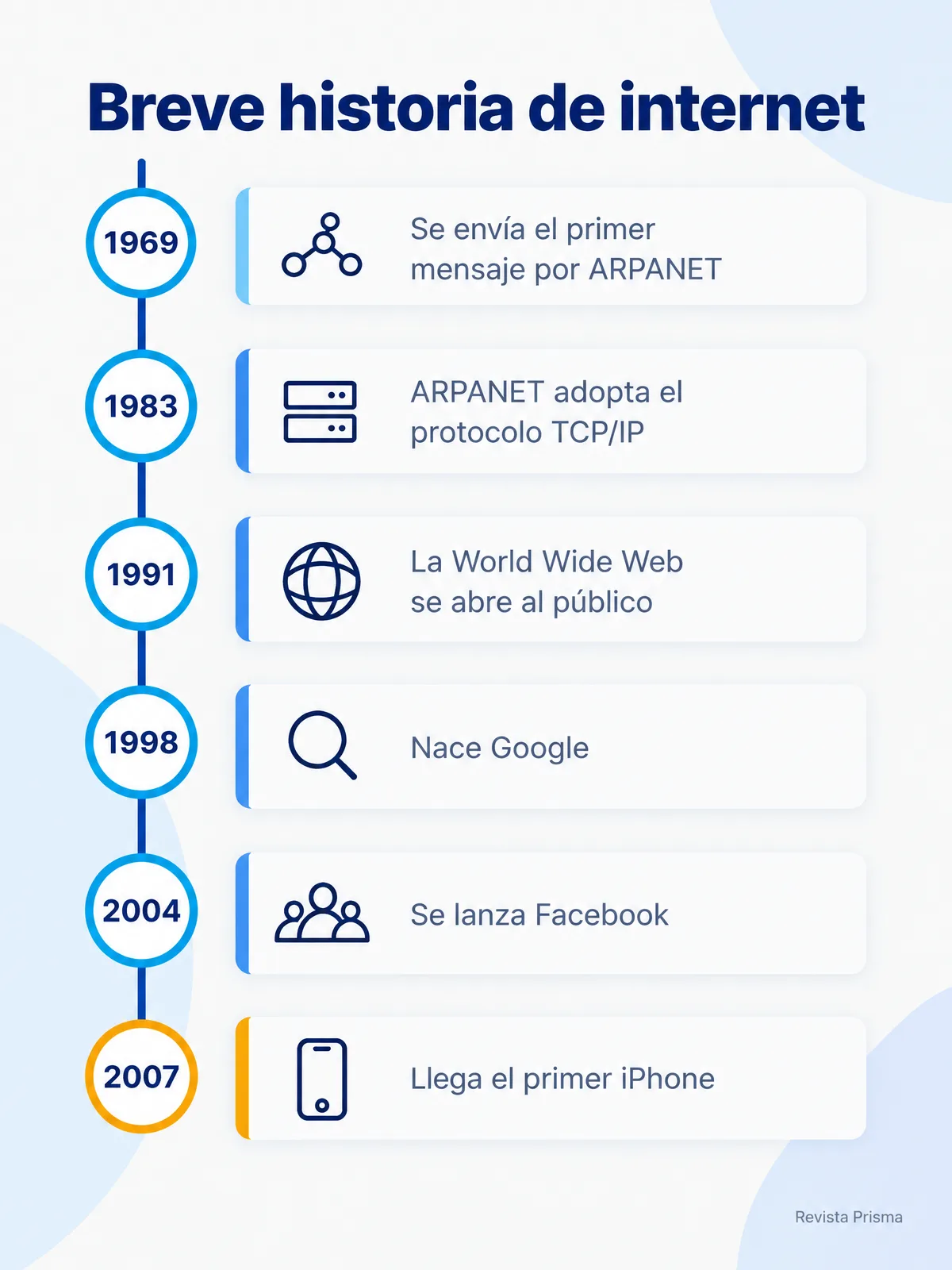
Timeline
Key moments in internet history laid out as a vertical timeline, with the last milestone highlighted.
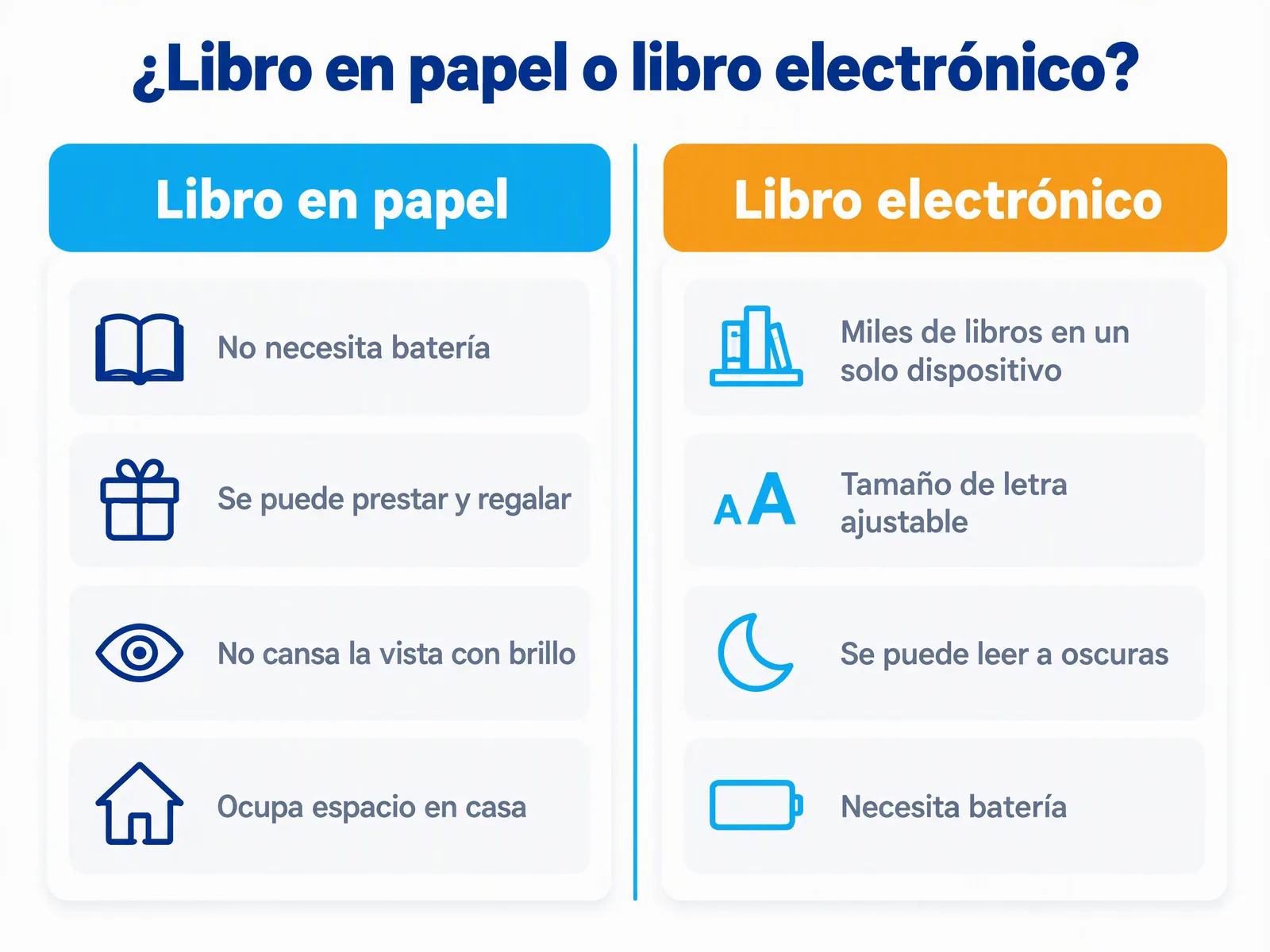
Side-by-side comparison
Paper books versus e-books in two balanced columns, each point with its own icon.
Which is best for what?
Quick picks by use case. Where Napkin AI is the better choice, we say so.
Best for diagrams inside the doc you're writing: Napkin AI
In Napkin you select a passage and turn it into a visual right next to it, so the diagram stays with the text.
Best for editing every shape and exporting SVG: Napkin AI
Napkin gives fine control over each shape, icon, connector and label, and exports editable SVG on paid plans.
Best for frequent simple diagrams on a small budget: Napkin AI
Napkin's free plan gives 500 AI credits a week, and Plus is $9 per person per month.
Best for finished, branded infographics and posts: Canvora
Canvora designs complete visuals with typography, imagery and your logo, ready to post, print or present.
Best for an infographic, carousel and deck from one document: Canvora
Give Canvora a PDF, link or text and it designs each format in its own size and in matching style.
Best for AI agents and chat assistants: Canvora
Canvora works inside ChatGPT and Claude and through an MCP server and REST API, so an agent can ask for finished visuals by format.
Pros and cons
Canvora
Pros
- Finished, on-brand designs ready to publish
- One input becomes an infographic, carousel, deck and posts
- 150+ languages typeset natively
- Works in ChatGPT, Claude and via MCP/API
- Style presets keep every post on one look; import one from any public Instagram profile
- Curated inspiration from your niche to start from
- Voice input: describe what you need out loud
Cons
- Less fine-grained diagram editing
- No editable SVG export
- Costs more for simple diagrams
Napkin AI
Pros
- Generous free plan; paid plans from $9
- Diagrams made right inside your doc
- Fine inline editing and editable SVG
- Works alongside Google Docs, Notion and PowerPoint; imports PPT, DOC, PDF and Markdown
Cons
- Napkin branding on the free plan
- Diagrams, not finished marketing visuals
- Mostly one visual at a time (Slides is in beta)
Should you choose Napkin AI or Canvora?
Both tools have strengths. Here's our honest recommendation.
Recommended
Choose Canvora if you...
- Finished infographics, posts and ads that carry your brand, ready to publish
- Turning one doc or link into an infographic plus a carousel, a deck and posts
- Visuals in 150+ languages, including localizing a finished set
- AI agents and assistants that need designed visuals through MCP or an API
- Matching a look you already like, from your own images or a public Instagram profile
Alternative
Choose Napkin AI if you...
- Writers who want diagrams right inside the doc they're writing
- Hands-on editing of every shape and connector, and editable SVG
- Frequent simple diagrams on a very small budget
- Flowcharts and mind maps for internal docs and lessons
Napkin AI vs Canvora pricing
Transparent pricing - no hidden fees
Napkin AI vs Canvora: common questions
Everything you need to know about choosing between these tools
Is Napkin AI free?
Yes, Napkin AI has a free plan with 500 AI credits per week and PNG and PDF export, with Napkin branding on visuals. Plus is $9 per person per month and Pro $22 (prices checked November 2026). Canvora gives you free credits to start, then credit packs from $10 or monthly plans from $19.
What is the best Napkin AI alternative?
If you love Napkin's in-doc diagrams, the closest alternatives are other diagram tools. If you've outgrown single diagrams and need finished, branded visuals (infographics, carousels, slide decks, posts and documents) from the same content, Canvora is built for that.
Is Canvora better than Napkin AI?
For a different job. Napkin is excellent and cheap for quick diagrams you edit inline inside a document. Canvora is better when the visual itself is the deliverable: a designed infographic, a carousel or a deck in your brand, in 100+ formats and 150+ languages.
Can Canvora edit a diagram element by element like Napkin?
Not to the same degree. Canvora's Visual Editor lets you change text, colors and elements, and you can ask for changes in chat, but Napkin gives finer control over individual shapes and connectors and exports editable SVG.
Can I turn a document into an infographic and a carousel at once?
Yes. Give Canvora a PDF, a link or pasted text and ask for the formats you need: for example an infographic, a LinkedIn carousel and a one-page summary. Each comes out in its own size and in matching style.
Which supports more languages?
Napkin AI says it creates visuals in 60+ languages. Canvora designs natively in 150+ languages and can localize a finished set into another language while keeping the design.
How much does Canvora cost compared with Napkin AI?
Napkin is cheaper for simple diagrams. Canvora gives you free credits to start, then credit packs of 450 credits for $10, 1,200 for $25 or 2,800 for $55 (valid 12 months, no watermark, 4K, PDF and PowerPoint export), or monthly plans at $19, $49 and $99. A single visual uses 10 credits and each carousel or deck slide 15.
How we compared
We compared the two on the jobs people most often switch for: infographics and diagrams, branded visuals, sets from one document and multilingual content. Prices and features come from each company's own website, as of November 2026. Napkin prices are per person.
We make Canvora, so read this with that in mind. We've tried to be fair, and the rows above show where Napkin AI is the better pick.
More Comparisons
Explore how Canvora compares to other tools
Ready to create faster?
Start free with credits to try it, no card needed.
Get Started Free